Signoff Studio Docs
Cookies & utilities
Bottom utility bar: Search, Cookies, Console, Dev Tools, and Preferences. Shared across API / Runner / DB on both Windows and VS Code.
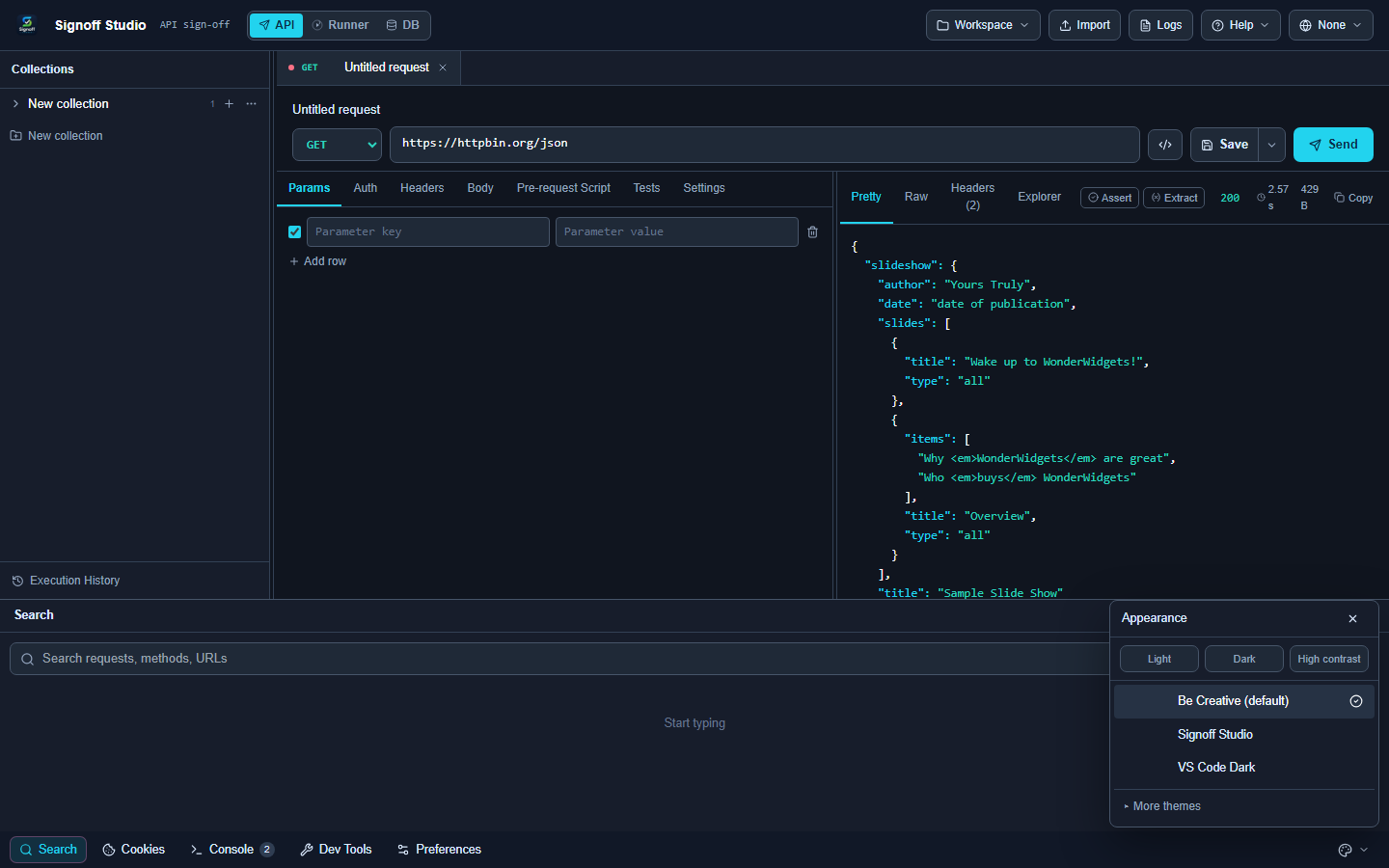
Workspace search
- Platform Availability: Full Parity
- Overview: Instant filter across requests by name, method, and URL so large collections stay navigable without scrolling the whole tree.
- How It Works (Windows App):
- Click Search on the bottom utility bar.
- Type a fragment (
GET,pets,/status). - Click a hit to open the request tab.
- How It Works (VS Code Extension):
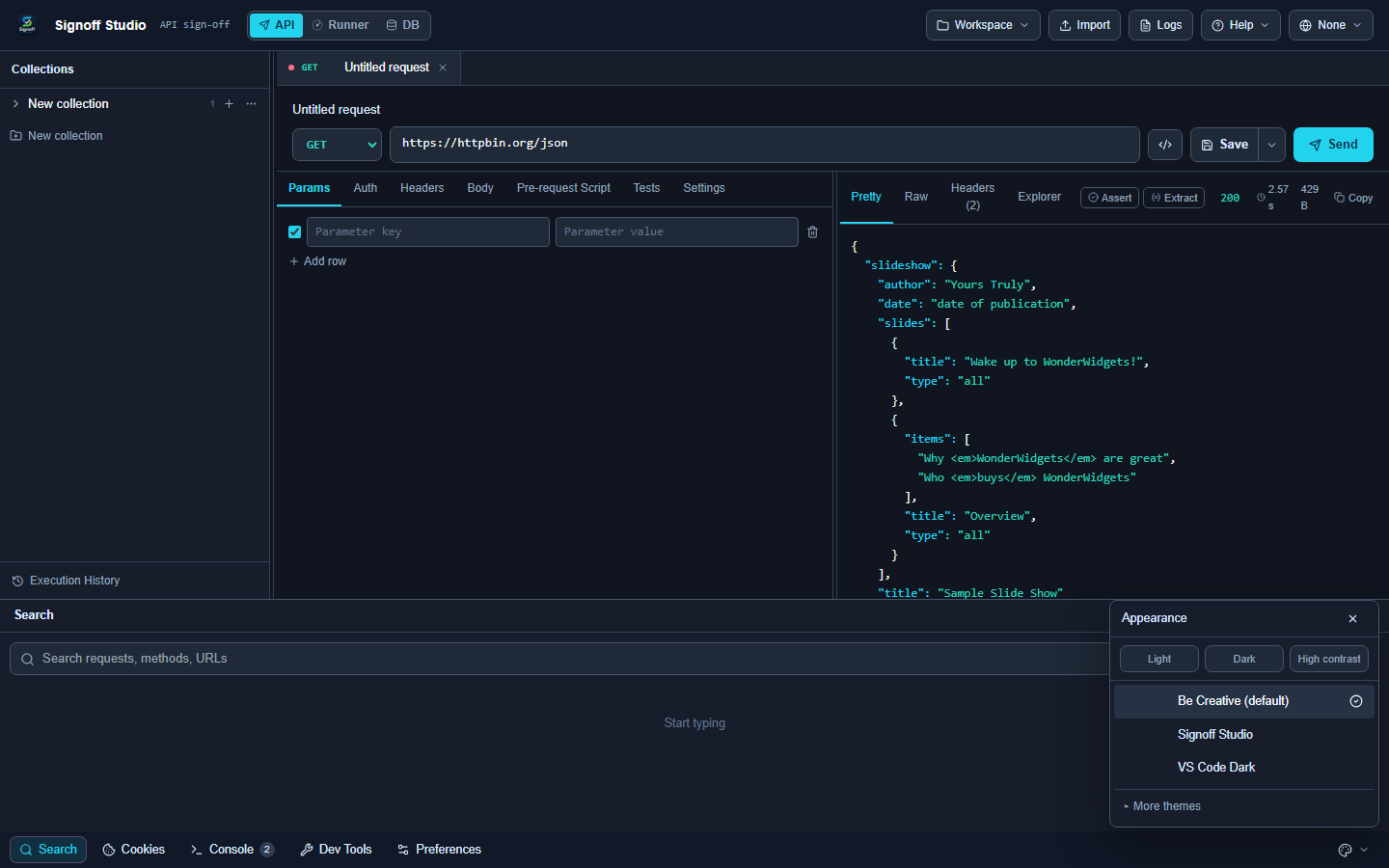
- Same Search panel in the webview.
- Works even when the sidebar tree is collapsed.
- Pair with Command Palette host commands for workspace-level actions.
- Code / Configuration Examples:
Query examples: GET pets {{baseUrl}} /oauth
- Edge Cases, Troubleshooting & Pro-Tips:
- Empty query shows a “Start typing” empty state — not the full list.
- Search is local to the loaded workspace, not Marketplace docs.
Cookie jar
- Platform Availability: Partial (UI Full Parity; persistence path differs)
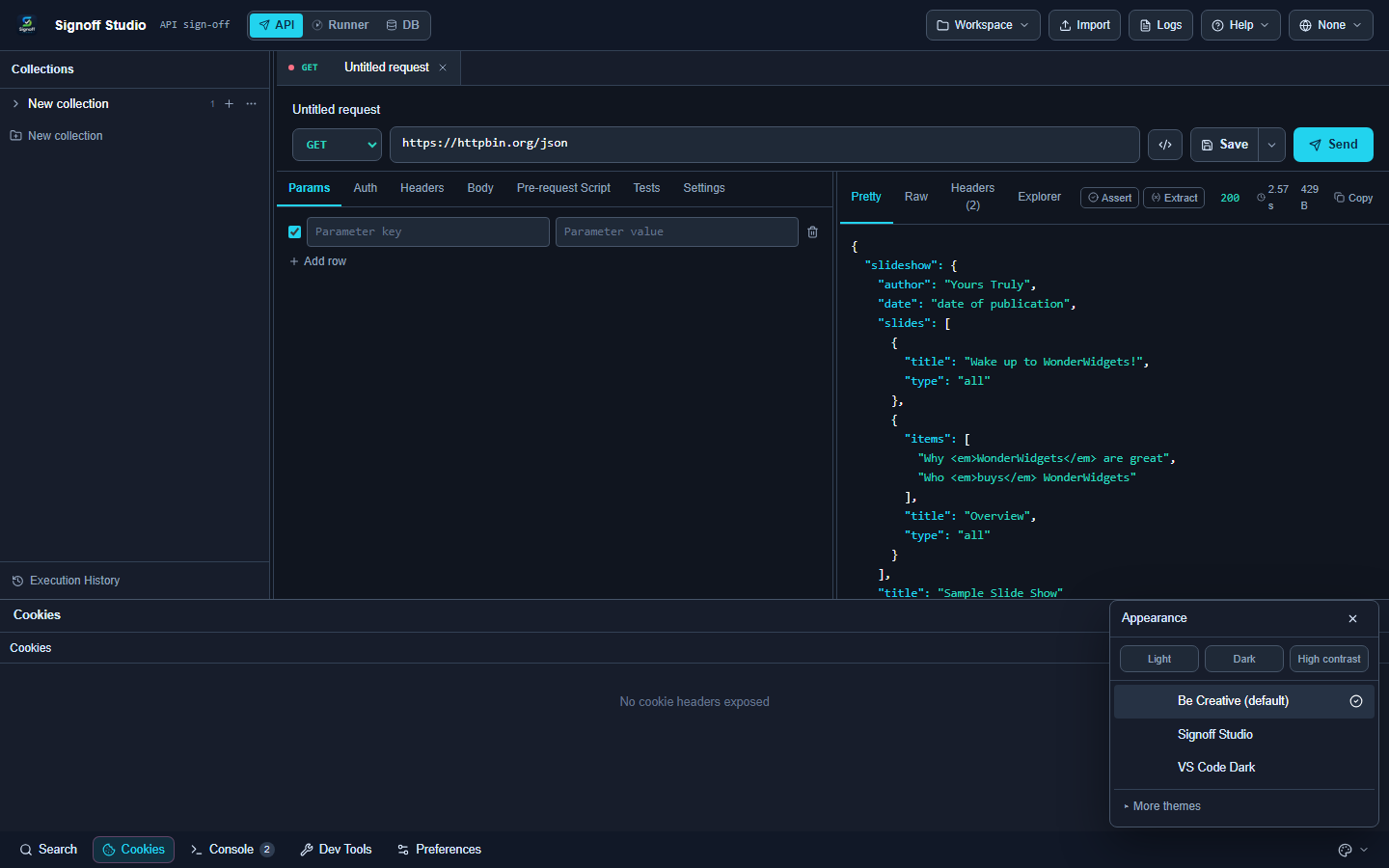
- Overview: View cookie-related response headers and manage jar behavior with Settings sendCookies / storeCookies. Jars persist per host profile.
- How It Works (Windows App):
- Send an authenticated request that sets cookies.
- Open Cookies on the utility bar to inspect exposed cookie headers.
- Clear or adjust jar policy under Settings → General when sessions go stale.
- How It Works (VS Code Extension):
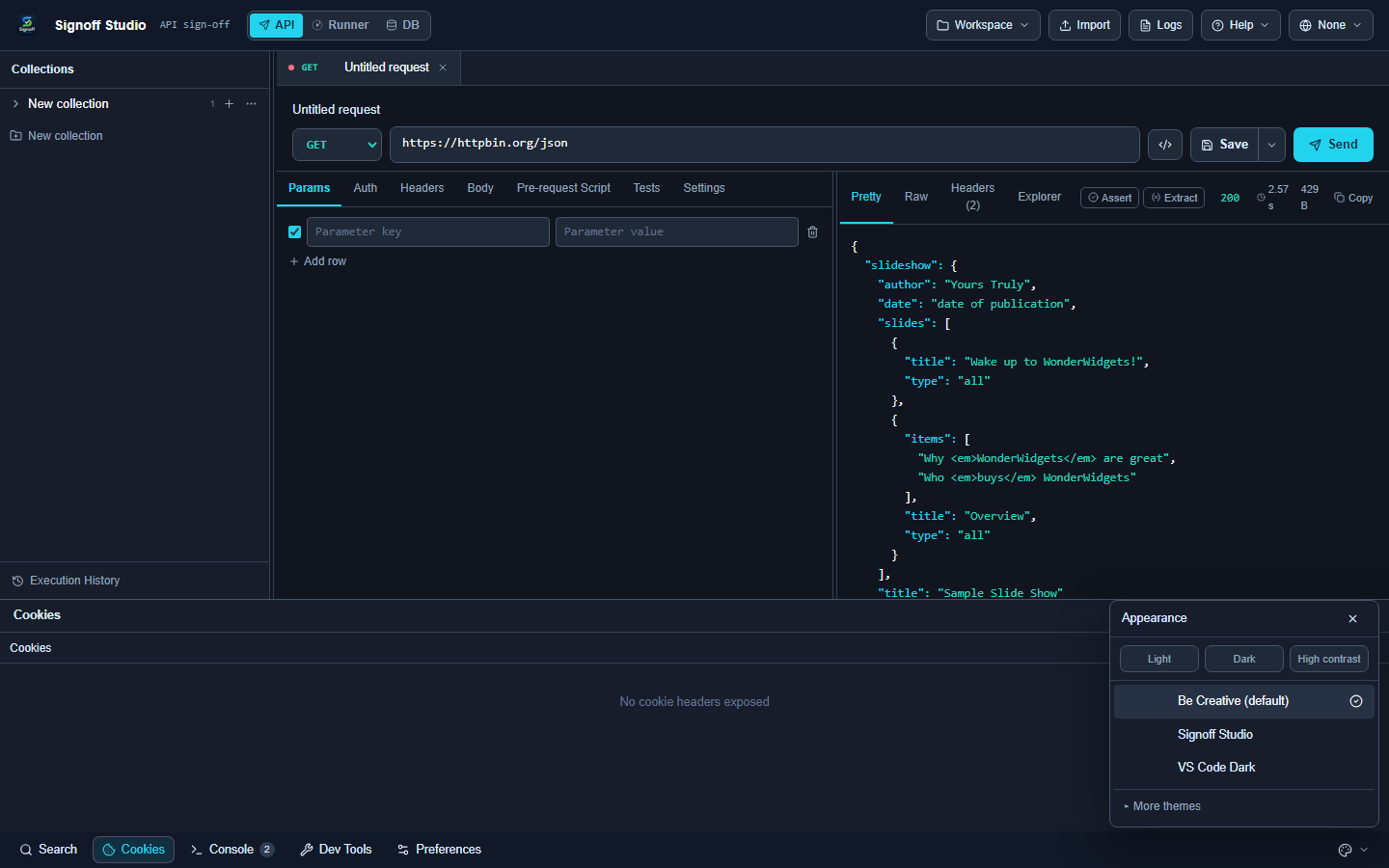
- Same Cookies panel in the shared shell.
- Persistence uses
~/.signoff/http-cookies/vscode.json(VS Code profile). - Desktop and VS Code jars do not automatically share cookies.
- Code / Configuration Examples:
{
  "general": {
    "sendCookies": true,
    "storeCookies": true
  }
}
- Edge Cases, Troubleshooting & Pro-Tips:
- Secure cookies require
https://targets. - Cross-host APIs won’t send host-only cookies — check domain/path attributes.
- Secure cookies require
GAP IDENTIFIED: Cookie jar file paths differ between Windows desktop and VS Code. Expect separate sessions when hopping hosts; export tokens via environments if you need portable auth.
Console
- Platform Availability: Full Parity
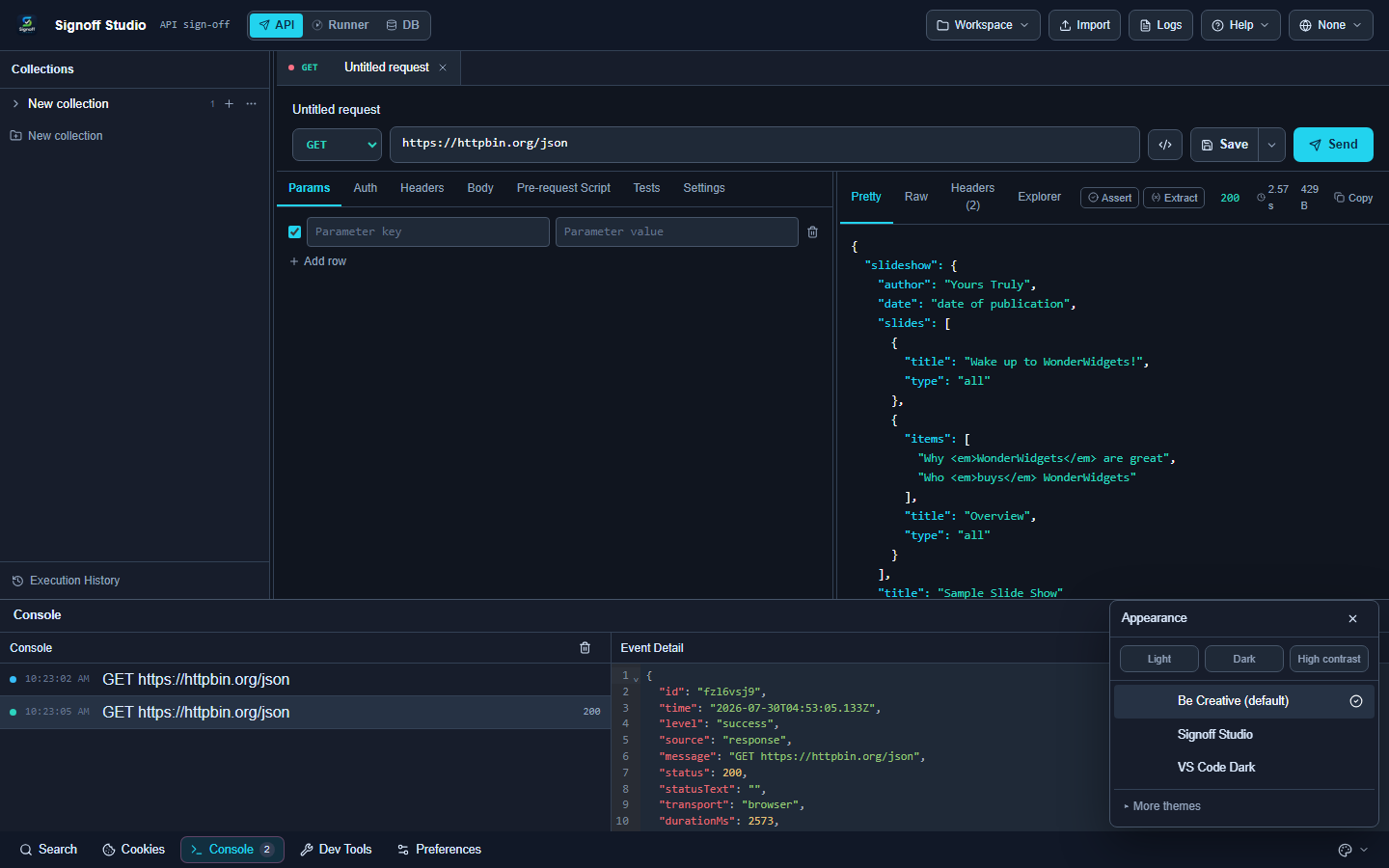
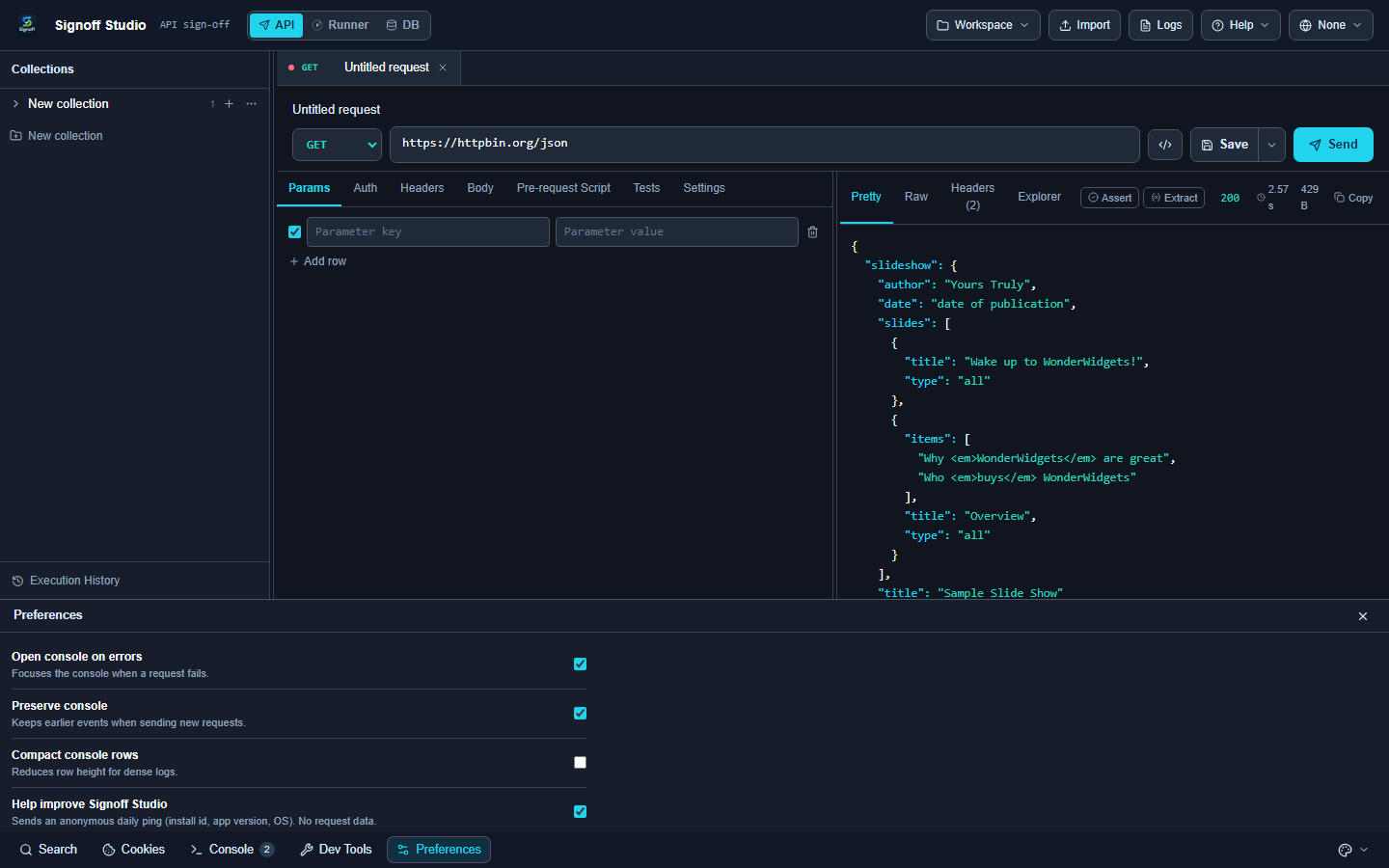
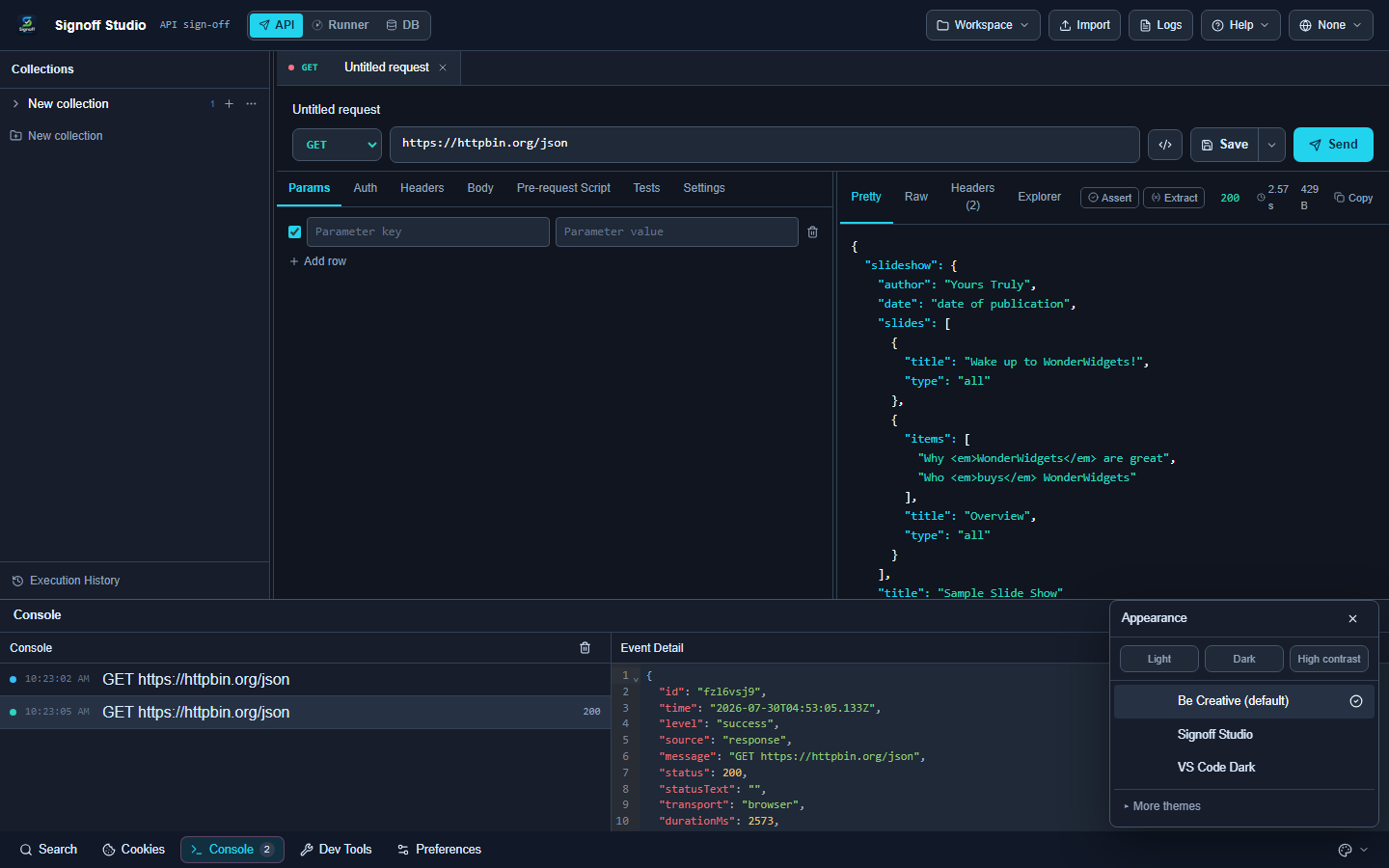
- Overview: Runtime, script, and diagnostic events. Preferences control auto-open on error, preserve across sends, compact rows, and anonymous product ping.
- How It Works (Windows App):
- Open Console; send a request or run scripts.
- Select an event for detail; clear when noisy.
- Tune behavior in Preferences (Ctrl+,).
- How It Works (VS Code Extension):
- Same Console + Preferences in the webview.
- Enable Open console on errors when debugging Tests/Pre-request.
- Product ping never includes request bodies.
- Code / Configuration Examples:
// In Tests
qa.test("status 200", () => {
  qa.expect(qa.response.code).to.equal(200);
});
- Edge Cases, Troubleshooting & Pro-Tips:
- With preserve off, previous send logs disappear — turn on when comparing two failures.
- Diagnostic Logs page (Help/Logs) is separate from the utility Console — use both for deep dives.
Dev Tools
- Platform Availability: Full Parity
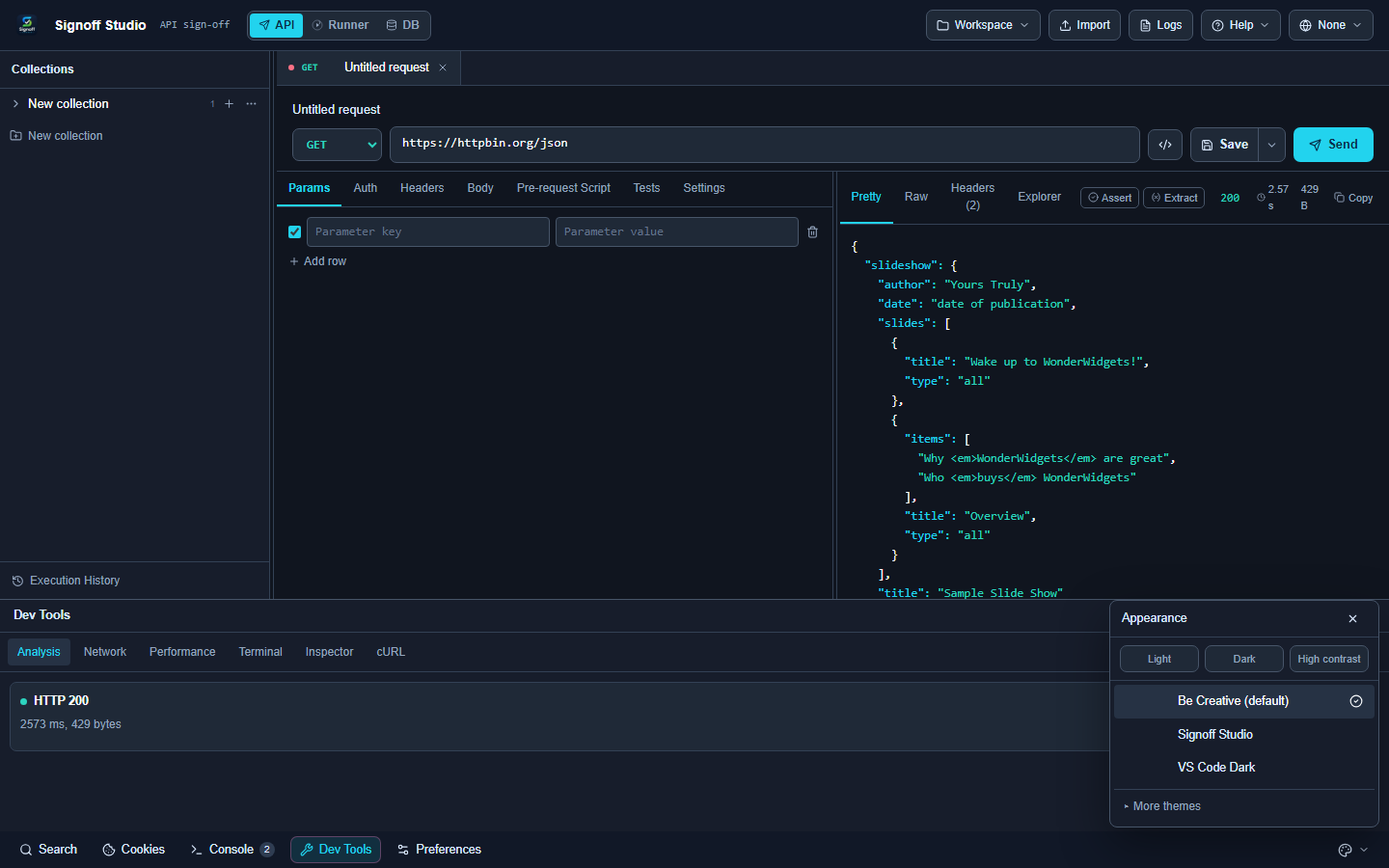
- Overview: Network timing, raw exchange details, and helper views (including cURL copy) after a response is available.
- How It Works (Windows App):
- Send a request.
- Open Dev Tools on the utility bar.
- Copy cURL or inspect timing/network panels.
- How It Works (VS Code Extension):
- Same Dev Tools panel after a send.
- Paste copied cURL into terminals or Issue repros.
- For missing response UI, run Signoff Studio: Restore Response Panel.
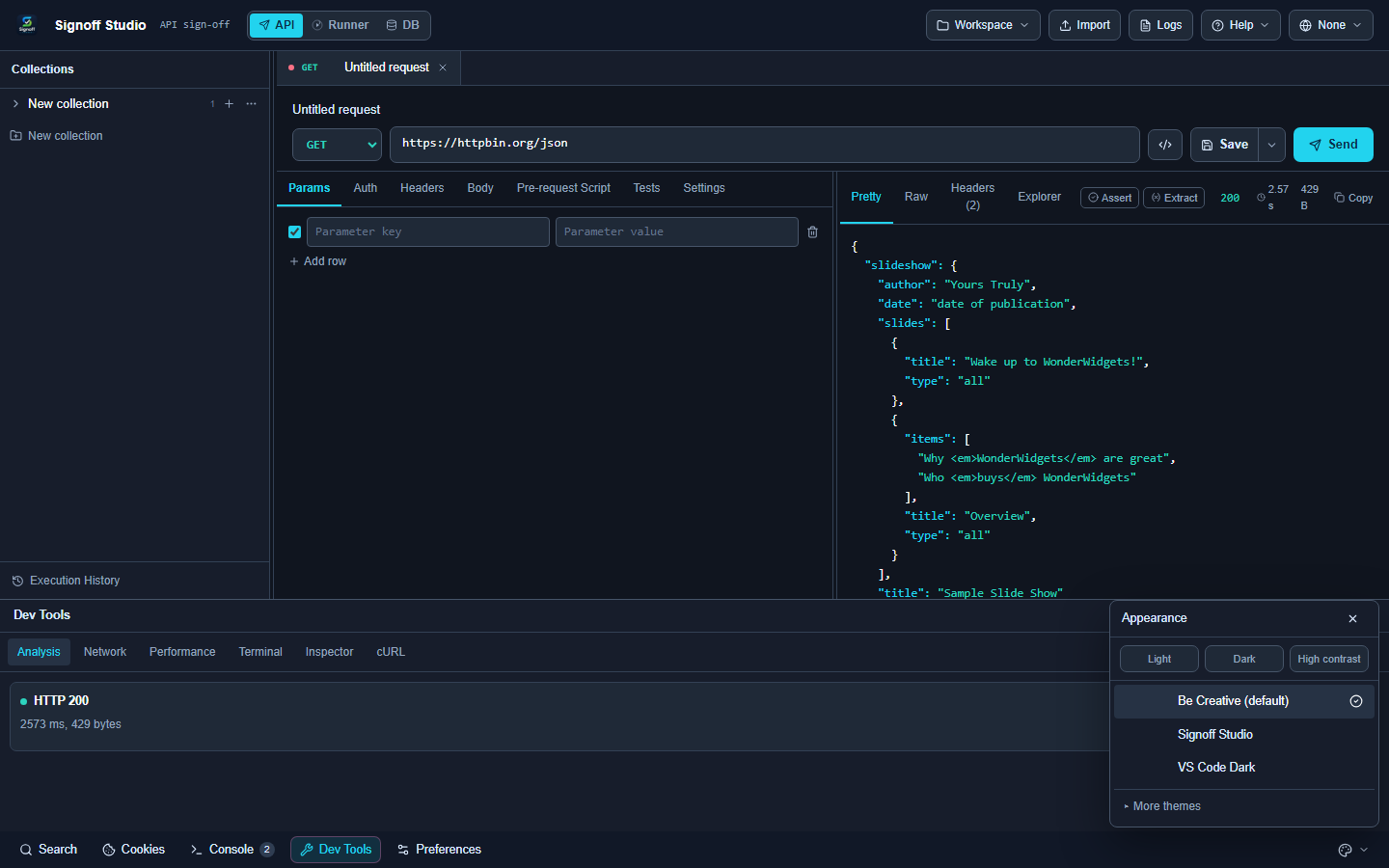
- Code / Configuration Examples:
curl -sS -X GET "https://httpbingo.org/get?product=signoff" -H "Accept: application/json"
- Edge Cases, Troubleshooting & Pro-Tips:
- Dev Tools empty state means no response yet — send first.
- Timing for WS/SSE streams differs from unary HTTP — use Stream tabs for live protocols.
Preferences (utility)
- Platform Availability: Full Parity
- Overview: Lightweight preferences for console + appearance entry points. Full desktop Settings overlay (proxy, certs, updates, AI providers) is Windows-first — see Settings.
- How It Works (Windows App): Bottom Preferences, Help → Preferences, or Ctrl+,.
- How It Works (VS Code Extension): Same Preferences surface; no
contributes.configurationkeys in VS Code.
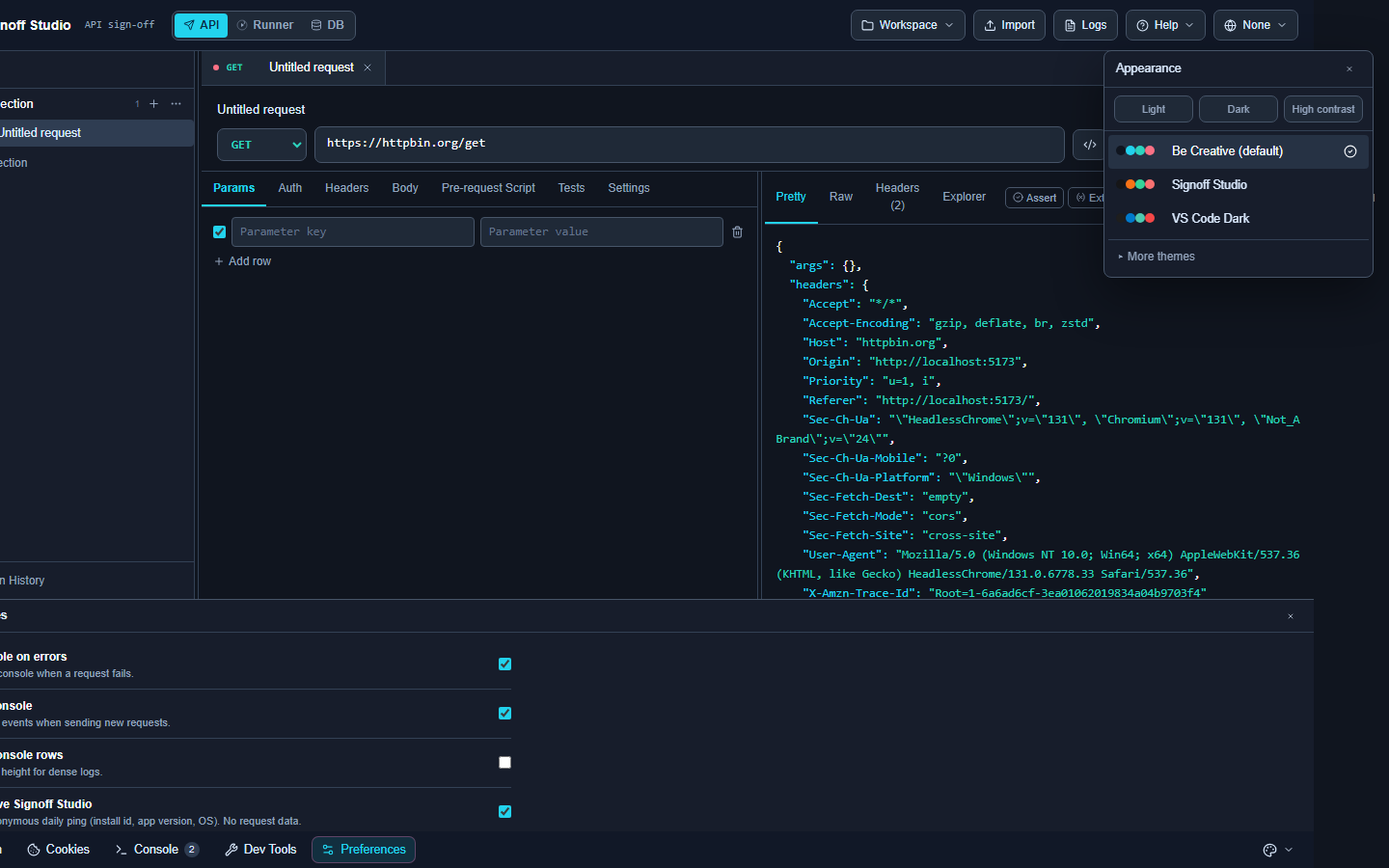
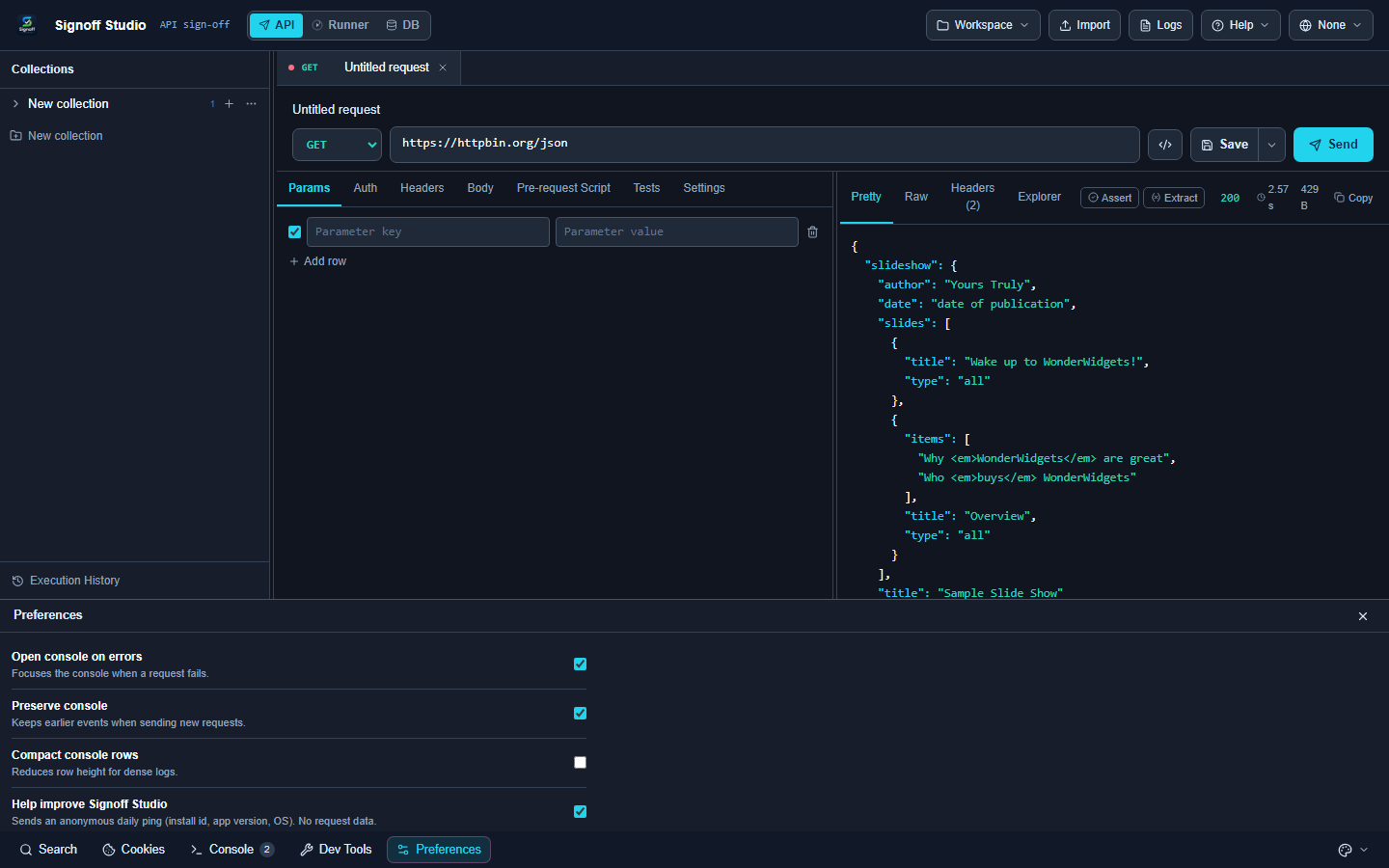
Code / Configuration Examples: See settings schema
console+appearancein Settings.Edge Cases, Troubleshooting & Pro-Tips:
- Appearance themes also open from the utility palette control.
- Resetting preferences does not delete workspace collections.
Diagnostic logs page
- Platform Availability: Full Parity
- Overview: App-level diagnostic log viewer for support and deep troubleshooting beyond the session Console.
- How It Works (Windows App): Open Logs from the top bar / Help paths; filter and copy relevant slices.
- How It Works (VS Code Extension): Same Logs page inside the webview when exposed by the shell chrome.
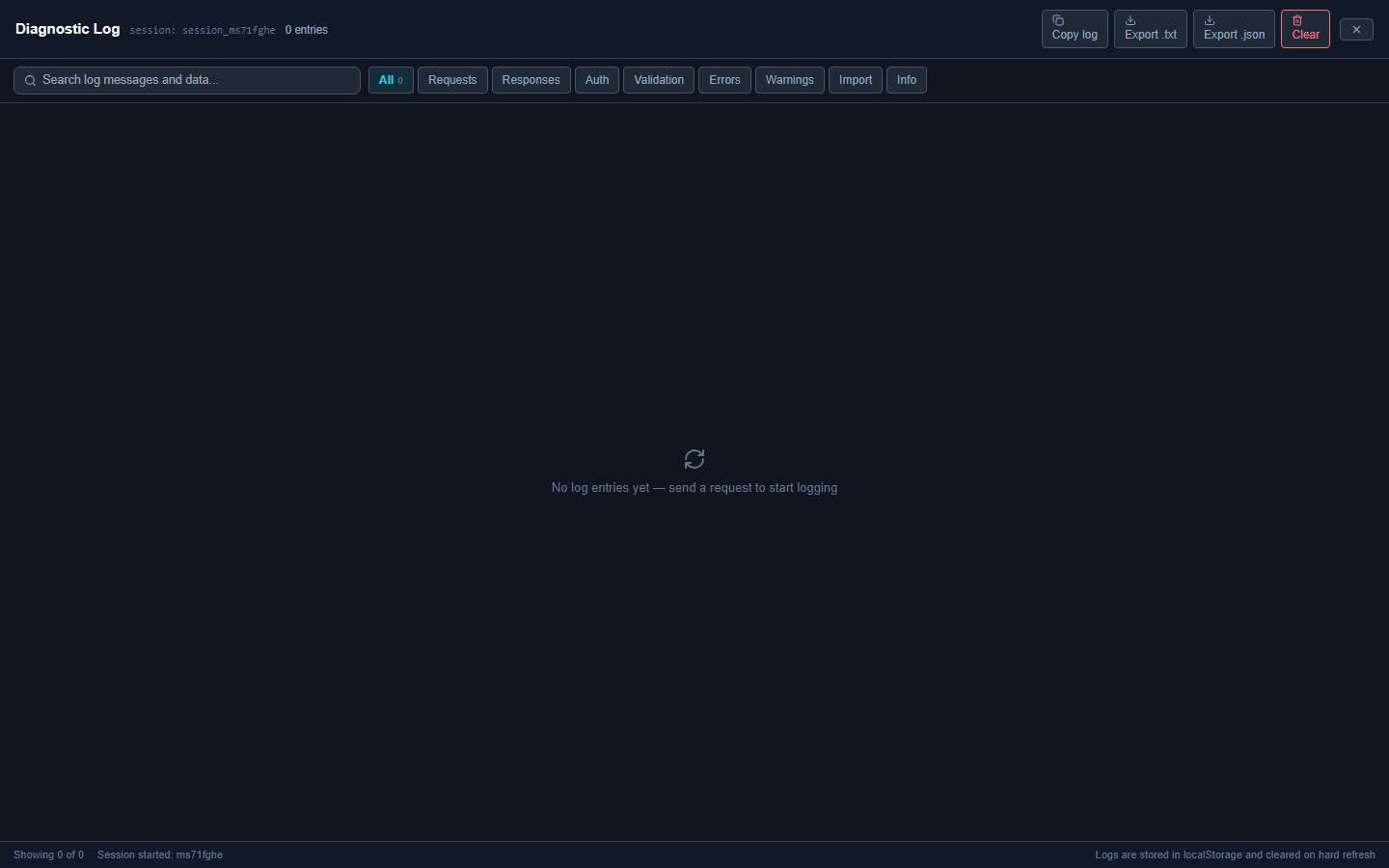
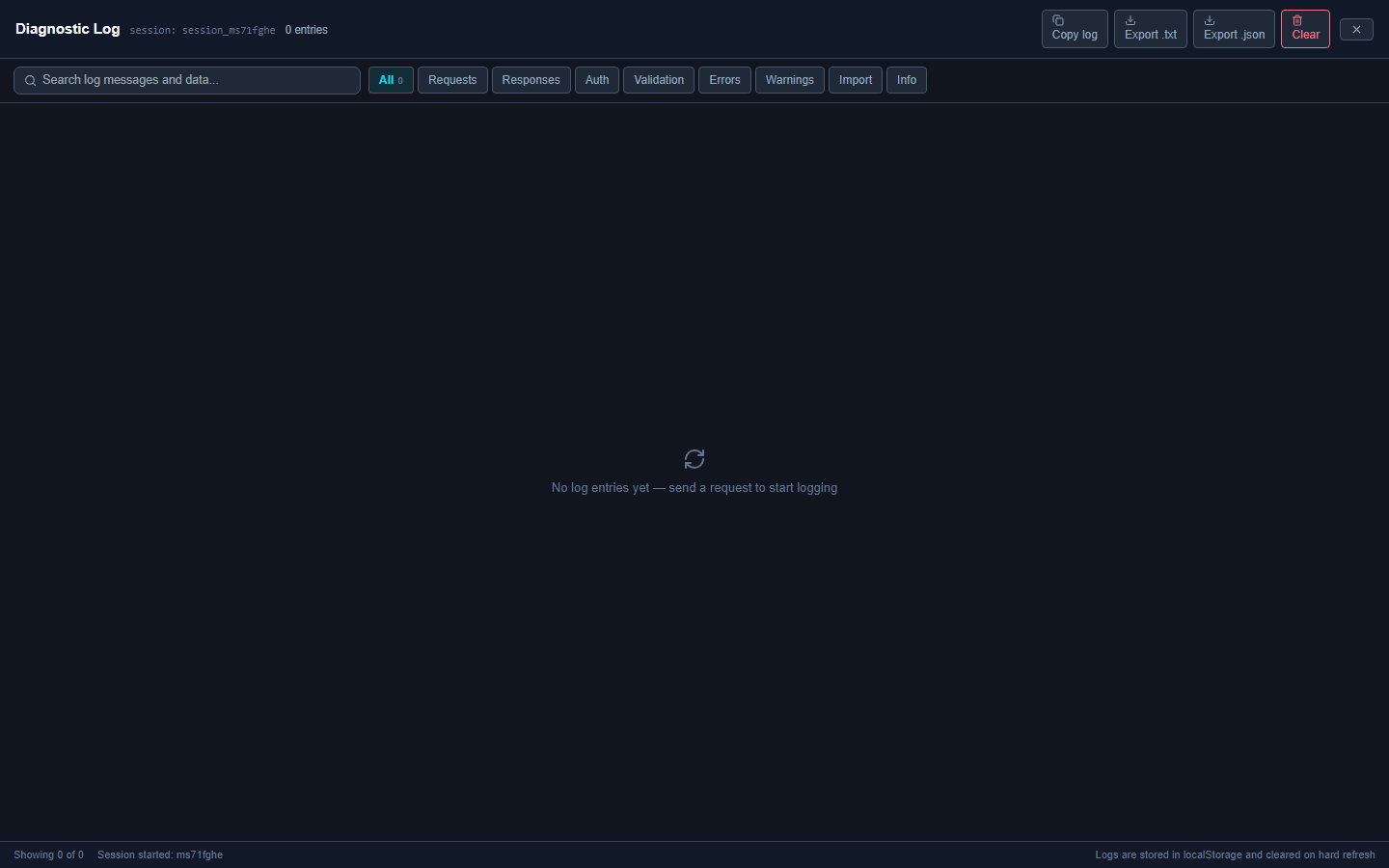
Code / Configuration Examples: N/A — UI export/copy only.
Edge Cases, Troubleshooting & Pro-Tips:
- Redact tokens before sharing logs externally.
- Pair with Troubleshooting when SSL or proxy issues appear.