Signoff Studio Docs
Settings
App-level settings document version 1 (signoff:app-settings:v1). Secrets (API tokens, proxy passwords, cert passphrases) are never stored in the JSON document — only presence flags and non-secret fields.
On Windows, the full Settings overlay covers General through About. On VS Code, use in-webview Preferences / AI surfaces; there is no contributes.configuration.
Starter workflows: Quick Start.
General
- Platform Availability: Windows Settings overlay full; shared defaults apply to both hosts’ HTTP pipeline
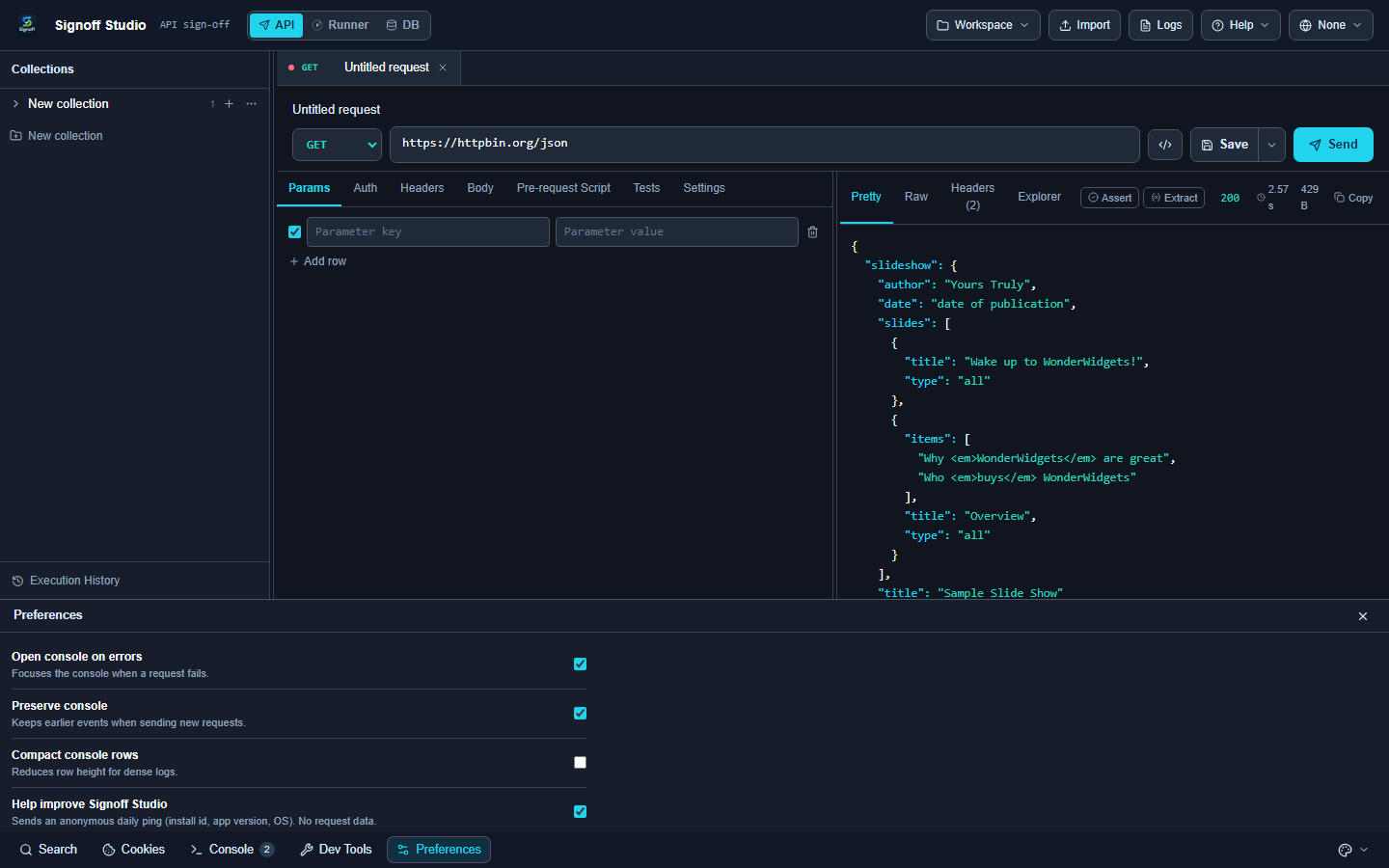
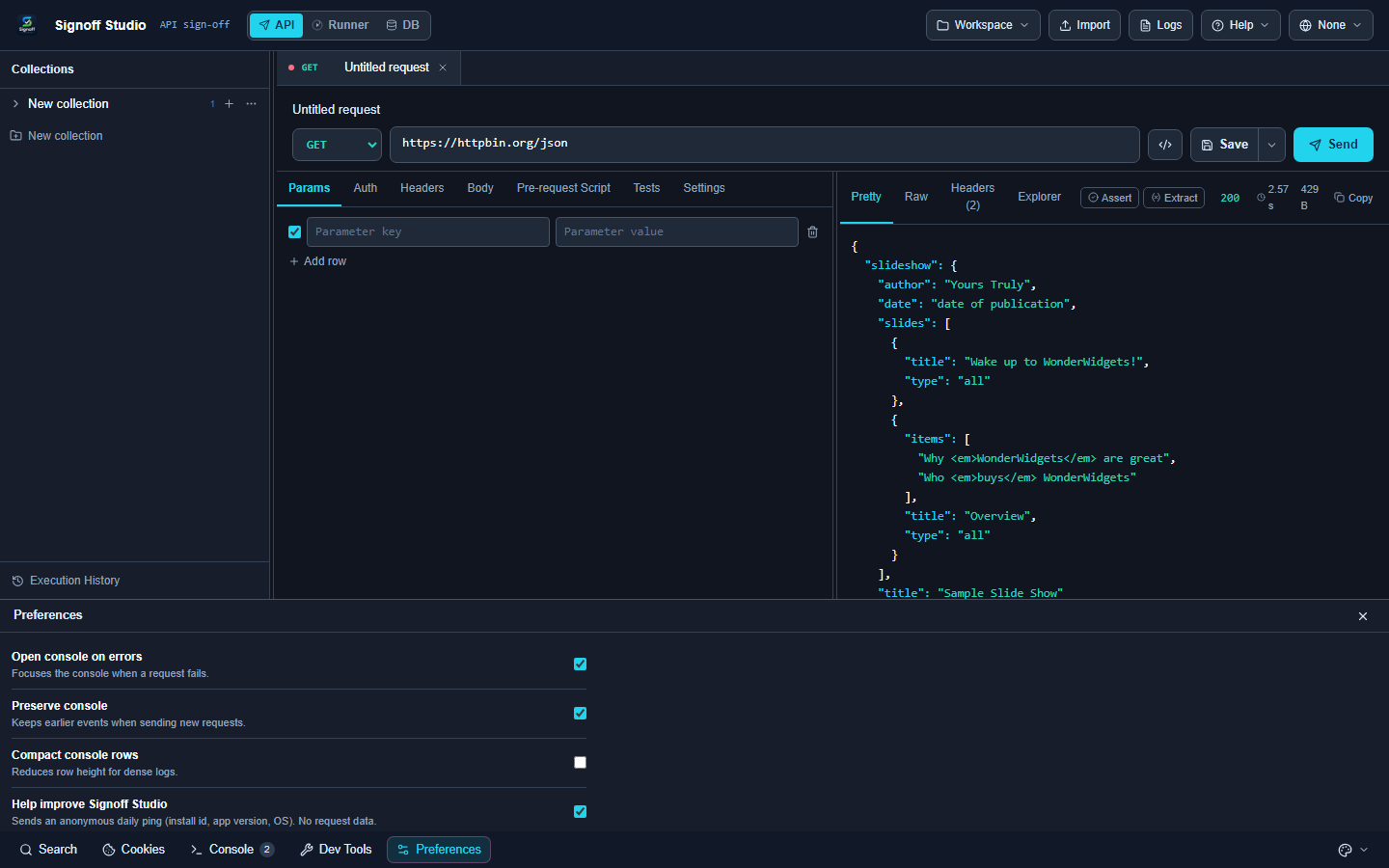
- Overview: Transport defaults for HTTP version, timeouts, SSL, cookies, redirects, validation, and response formatting. Request-level Settings can still override selected behaviors.
- How It Works (Windows App):
- Open Settings (gear / Ctrl+, / Help).
- Select General; edit fields; close — changes persist immediately.
- Send a request to verify timeout/SSL/cookie behavior.
- How It Works (VS Code Extension):
- Prefer request Settings tab for per-request overrides.
- Shared app settings apply when the host loads the same settings store.
- OS/VS Code proxy may still apply outside Signoff’s manual proxy mode.
- Code / Configuration Examples:
{
  "general": {
    "httpVersion": "auto",
    "timeoutMs": 30000,
    "maxResponseMb": 50,
    "sslVerification": true,
    "sslDebug": false,
    "sendCookies": true,
    "storeCookies": true,
    "validateRequests": true,
    "followRedirects": true,
    "responseFormat": "auto"
  }
}
| Key | Values / range | Default |
|---|---|---|
httpVersion |
auto, http1 |
auto |
timeoutMs |
0–3600000 | 30000 |
maxResponseMb |
0–4096 | 50 |
sslVerification |
boolean | true |
sslDebug |
boolean | false |
sendCookies / storeCookies |
boolean | true |
validateRequests |
boolean | true |
followRedirects |
boolean | true |
responseFormat |
auto, json, text |
auto |
- Edge Cases, Troubleshooting & Pro-Tips:
- Turn on
sslDebugonly while diagnosing MITM/proxy appliances. - Huge payloads: raise
maxResponseMbcarefully — memory is local.
- Turn on
GAP IDENTIFIED: Full General section UI lives in the Windows Settings overlay. VS Code has no Marketplace settings keys for these fields.
Appearance
- Platform Availability: Full Parity (Preferences / Appearance). Theme packs also on Windows overlay.
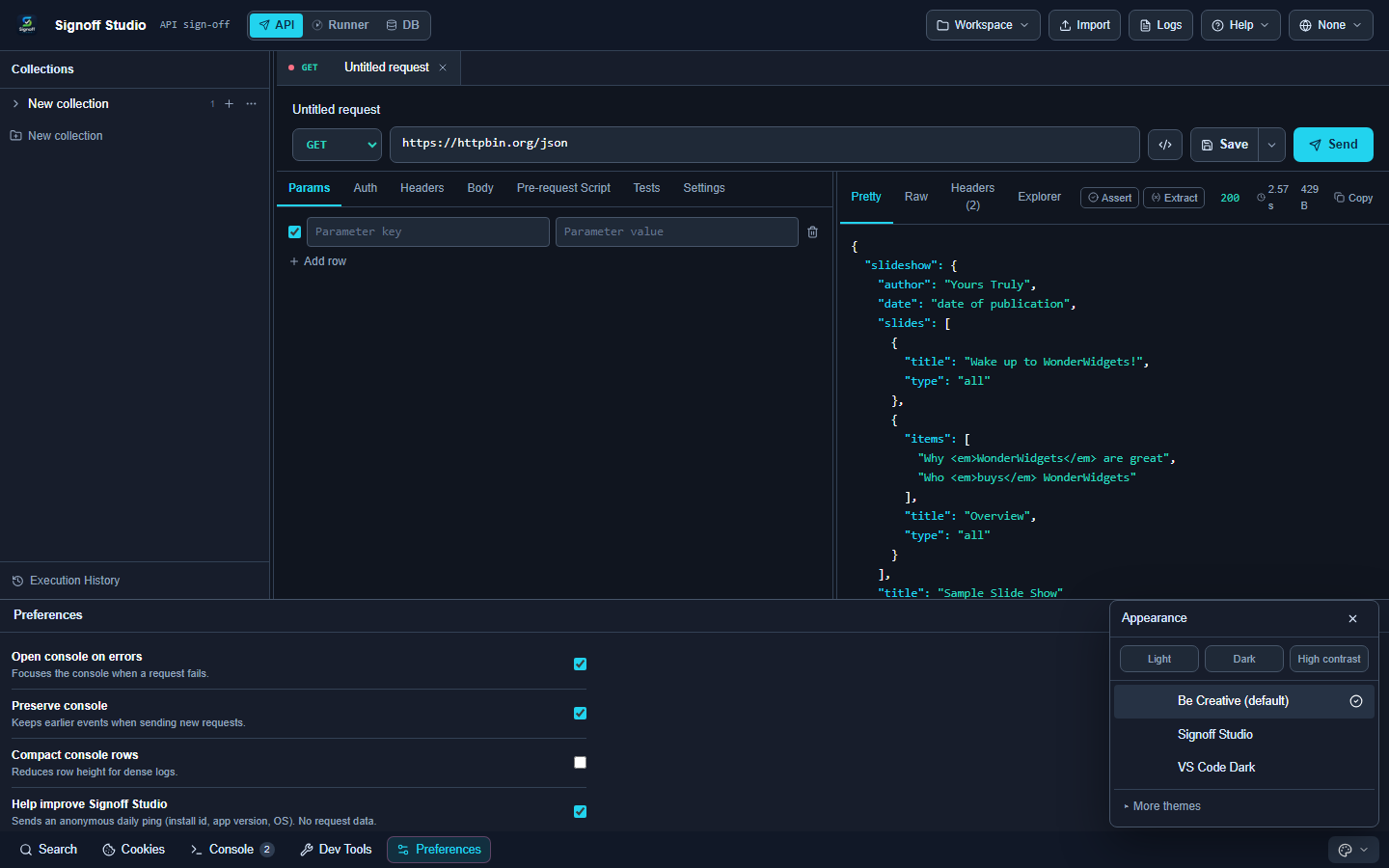
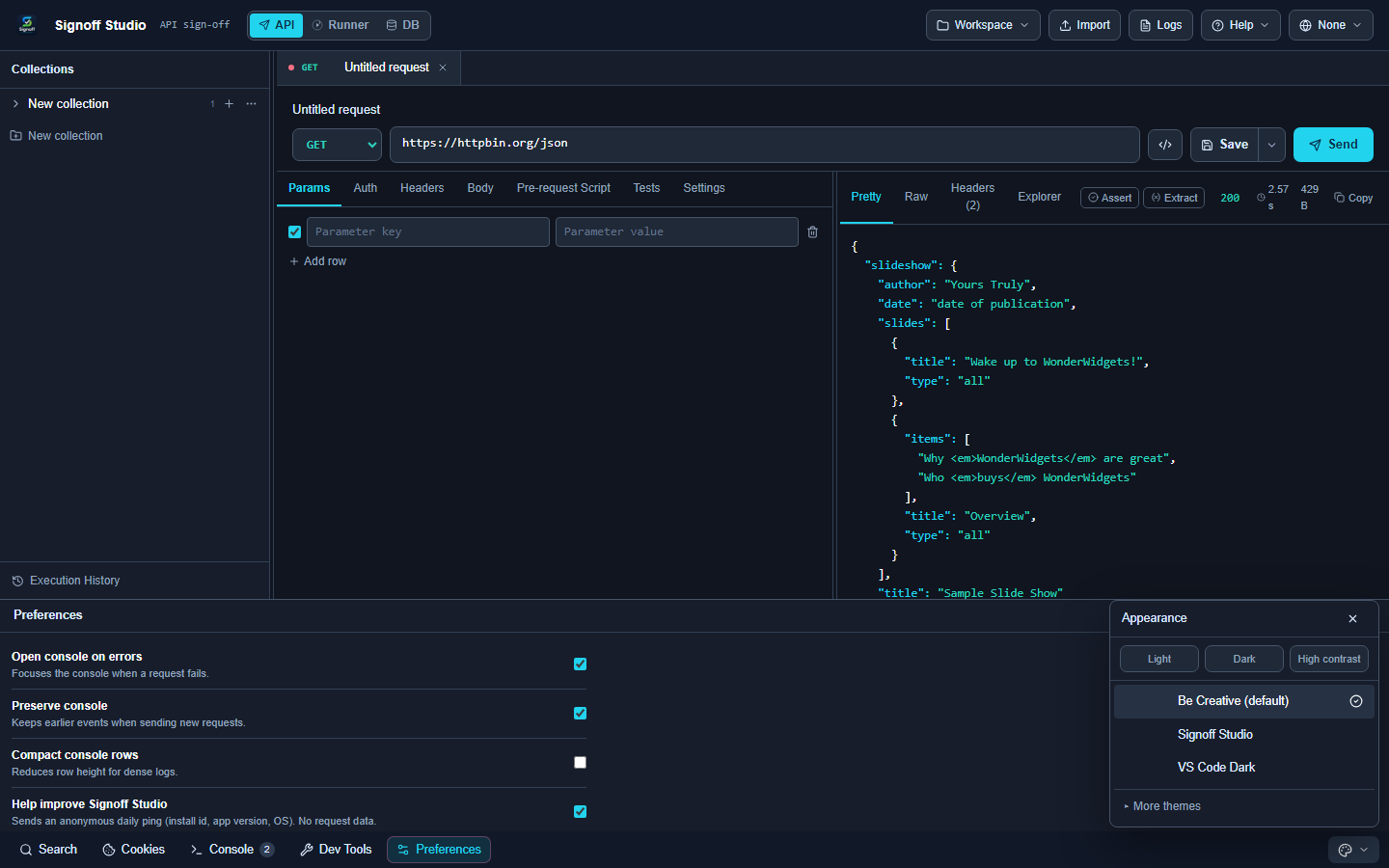
- Overview: Theme, density, editor font size/family, and UI zoom. VS Code additionally bridges host theme tokens into the webview.
- How It Works (Windows App):
- Help → Appearance, utility palette, or Settings → Appearance.
- Pick theme (Be Creative, Signoff Studio, VS Code Dark, Light/Dark/High contrast packs, etc.).
- Adjust density (
comfortable/compact), font size (10–28), zoom (0.5–2).
- How It Works (VS Code Extension):
- Open Appearance / Preferences from the utility bar.
- Host theme bridge keeps webview close to the IDE chrome.
- Editor font family empty → product default stack.
- Code / Configuration Examples:
{
  "appearance": {
    "theme": "beCreative",
    "density": "comfortable",
    "editorFontSize": 13,
    "editorFontFamily": "",
    "uiZoom": 1
  }
}
- Edge Cases, Troubleshooting & Pro-Tips:
- Extreme zoom can clip dense Runner tables — reset
uiZoomto1. - High contrast themes help assert failure scanning in Runner.
- Extreme zoom can clip dense Runner tables — reset
Shortcuts
- Platform Availability: Full Parity for default keymap; override editor on Windows Settings → Shortcuts
- Overview: Default chords for send/save/duplicate/tabs/settings. Overrides map action id → chord; VS Code does not contribute keybindings — host chords may take precedence.
- How It Works (Windows App):
- Settings → Shortcuts.
- Review defaults; set overrides as needed.
- See Shortcuts for Runner/DB tables.
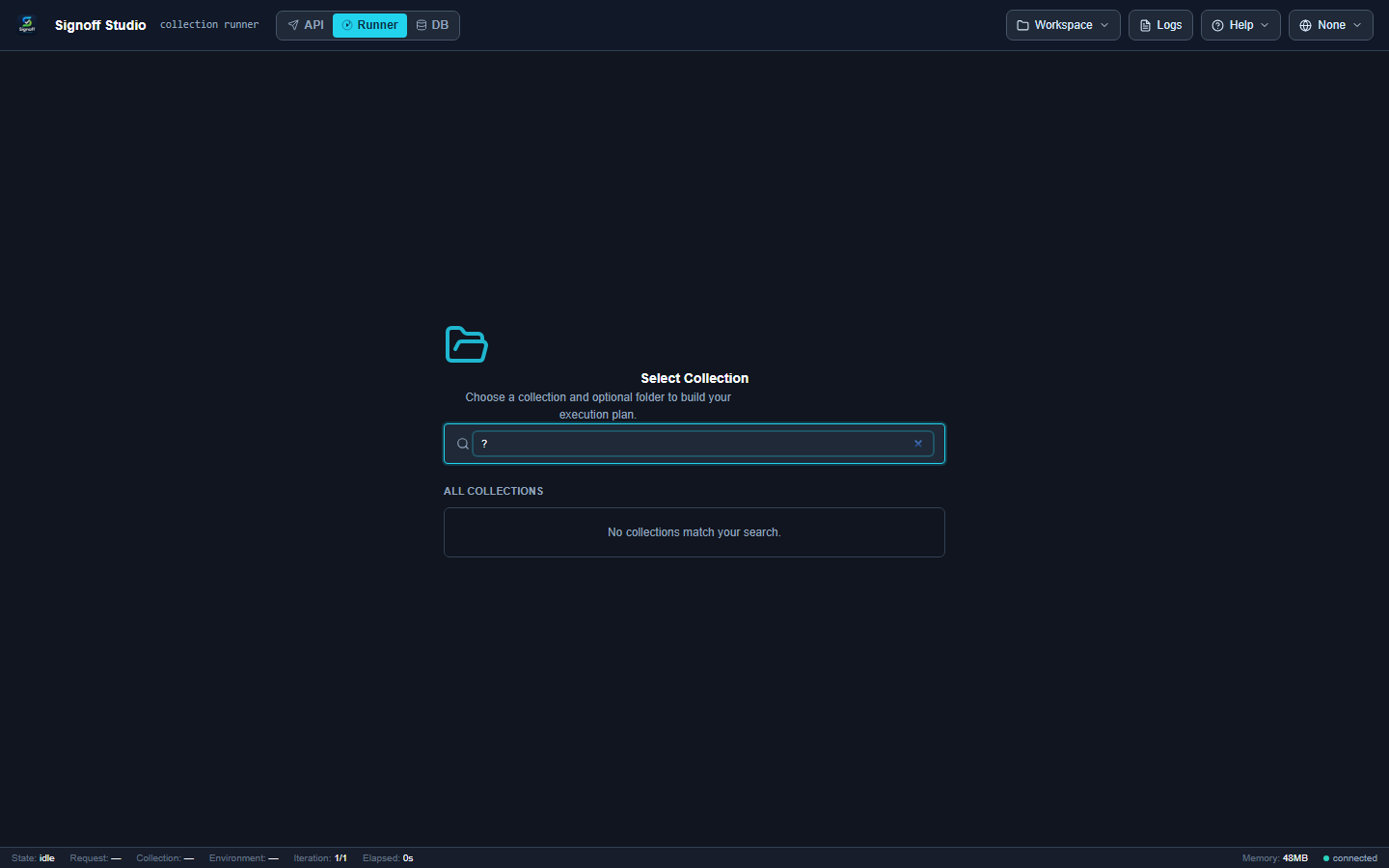
- How It Works (VS Code Extension):
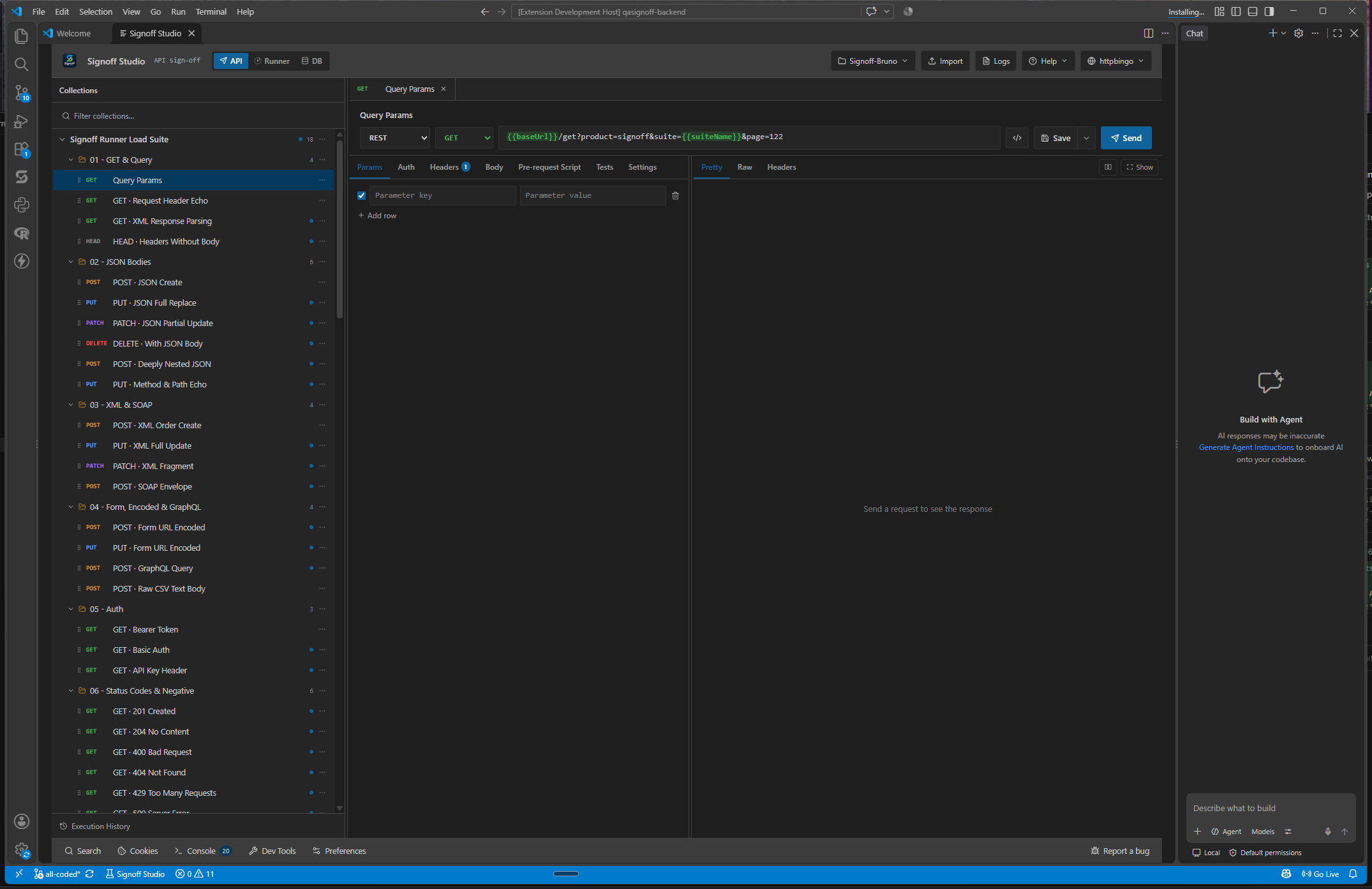
- In-webview shortcuts match the shared keymap when focus is in the webview.
- Bind
qasignoff.*commands yourself inkeybindings.json. - Avoid colliding with Chord-heavy VS Code defaults (e.g. Ctrl+K).
- Code / Configuration Examples:
{
  "shortcuts": {
    "overrides": {
      "sendRequest": { "ctrl": true, "key": "Enter" }
    }
  }
}
Default action ids include: sendRequest, save, duplicate, explorerRename, explorerDelete, explorerMove, openSettings, closeTab, reopenTab.
- Edge Cases, Troubleshooting & Pro-Tips:
- Empty overrides
{}restores defaults. - Full chord tables: shortcuts.md.
- Empty overrides
AI
- Platform Availability: Capability Full Parity; Windows overlay is the richest token UI
- Overview: BYOK providers, privacy flags, autocomplete mode, timeouts. See AI assist.
- How It Works (Windows App): Settings → AI → enable provider → set token → test → use assist bar.
- How It Works (VS Code Extension): Configure via webview AI settings; no
settings.jsoncontribution.
- Code / Configuration Examples:
{
  "ai": {
    "enabled": true,
    "defaultProvider": "none",
    "defaultModel": "",
    "autocompleteModel": "",
    "timeoutMs": 60000,
    "maxTokens": 2048,
    "sendMethodAndPath": true,
    "sendHeaders": false,
    "sendBody": false,
    "sendResponseBody": false,
    "includeSchema": false,
    "autocomplete": "debounced",
    "providers": {
      "openai": { "enabled": false, "model": "", "hasToken": false },
      "anthropic": { "enabled": false, "model": "", "hasToken": false },
      "azure": {
        "enabled": false,
        "endpoint": "",
        "deployment": "",
        "apiVersion": "2024-02-15-preview",
        "hasToken": false
      },
      "gemini": { "enabled": false, "model": "", "hasToken": false },
      "openaiCompat": {
        "enabled": false,
        "name": "Local OpenAI-compatible",
        "baseUrl": "http://127.0.0.1:11434/v1",
        "model": "",
        "hasToken": false
      }
    }
  }
}
Providers enum: none, openai, anthropic, azure, gemini, openai-compat.
Autocomplete: off, debounced, aggressive, manual.
- Edge Cases, Troubleshooting & Pro-Tips:
- Tokens are host-secret storage — exports only show
hasToken. - Keep headers/bodies off unless the provider account is trusted.
- Tokens are host-secret storage — exports only show
GAP IDENTIFIED: Desktop Settings overlay AI forms (set/clear token, test connection, list models) are Windows-first.
Proxy
- Platform Availability: Windows Settings overlay; Partial on VS Code (OS/IDE proxy)
- Overview: Modes
none,system,manualwith host/port/username/password presence and bypass list. - How It Works (Windows App): Settings → Proxy → choose mode → for manual, set host/port/auth → bypass
localhost,127.0.0.1,<local>. - How It Works (VS Code Extension): Rely on OS / VS Code proxy settings; Signoff manual proxy UI may be unavailable.
- Code / Configuration Examples:
{
  "proxy": {
    "mode": "none",
    "host": "",
    "port": 8080,
    "username": "",
    "hasPassword": false,
    "bypass": "localhost,127.0.0.1,<local>"
  }
}
- Edge Cases, Troubleshooting & Pro-Tips:
- Corporate SSL inspection: add enterprise CA under Certificates and/or disable verification only temporarily.
- WebSocket/MQTT often fail through intercepting proxies — test direct.
GAP IDENTIFIED: Full proxy editor is on the Windows Settings overlay.
Certificates
- Platform Availability: Windows Settings overlay; Partial elsewhere
- Overview: Client and CA certificates (paths to cert/key/PFX) with optional passphrase presence flags. Enable/disable per entry.
- How It Works (Windows App): Settings → Certificates → add client/CA → point at files → enable.
- How It Works (VS Code Extension): Use OS trust store / request-level options when overlay is unavailable.
- Code / Configuration Examples:
{
  "certificates": [
    {
      "id": "cert_client_1",
      "name": "Corp client",
      "kind": "client",
      "certPath": "C:/certs/client.crt",
      "keyPath": "C:/certs/client.key",
      "pfxPath": "",
      "enabled": true,
      "hasPassphrase": true
    }
  ]
}
- Edge Cases, Troubleshooting & Pro-Tips:
- Passphrases are not in the settings JSON — only
hasPassphrase. - Wrong kind (
clientvsca) is a common mTLS failure mode.
- Passphrases are not in the settings JSON — only
GAP IDENTIFIED: Certificate manager UI is Windows Settings overlay.
Updates
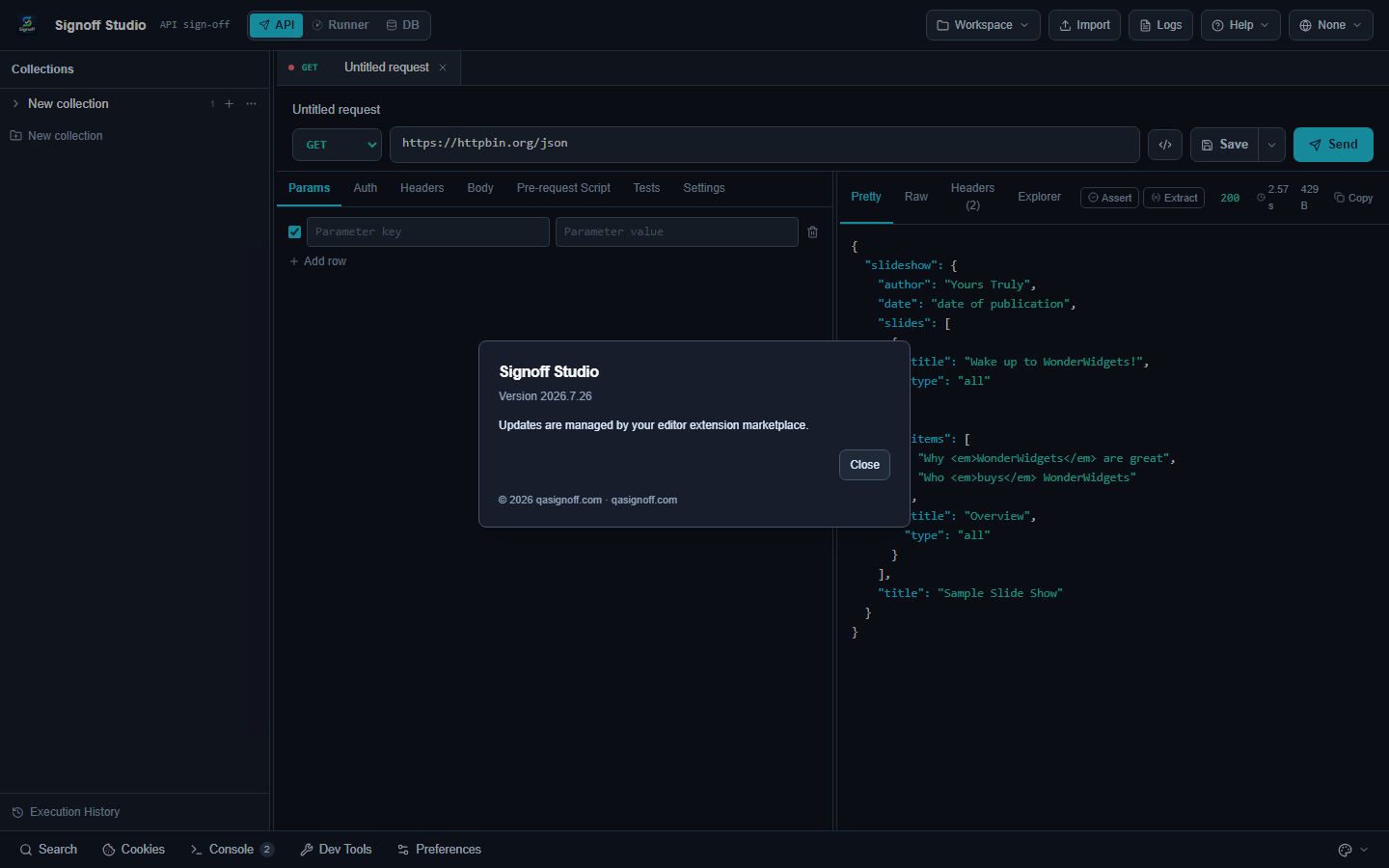
- Platform Availability: Windows Only (auto-check). VS Code uses Marketplace updates.
- Overview:
autoChecktoggles desktop update polling / banner behavior. - How It Works (Windows App): Settings → Updates → enable auto-check; apply banners when offered.
- How It Works (VS Code Extension): Marketplace updates the extension automatically (sideloaded VSIX does not).
- Code / Configuration Examples:
{
  "updates": {
    "autoCheck": true
  }
}
- Edge Cases, Troubleshooting & Pro-Tips:
- Air-gapped desktops: disable auto-check and install offline builds intentionally.
- Confirm versions: Windows Help → About; VS Code Extensions detail.
GAP IDENTIFIED: Desktop update banner is Windows Only.
Security
- Platform Availability: Windows overlay + shared export behavior
- Overview: Mask secrets in UI and control whether exports include secret values.
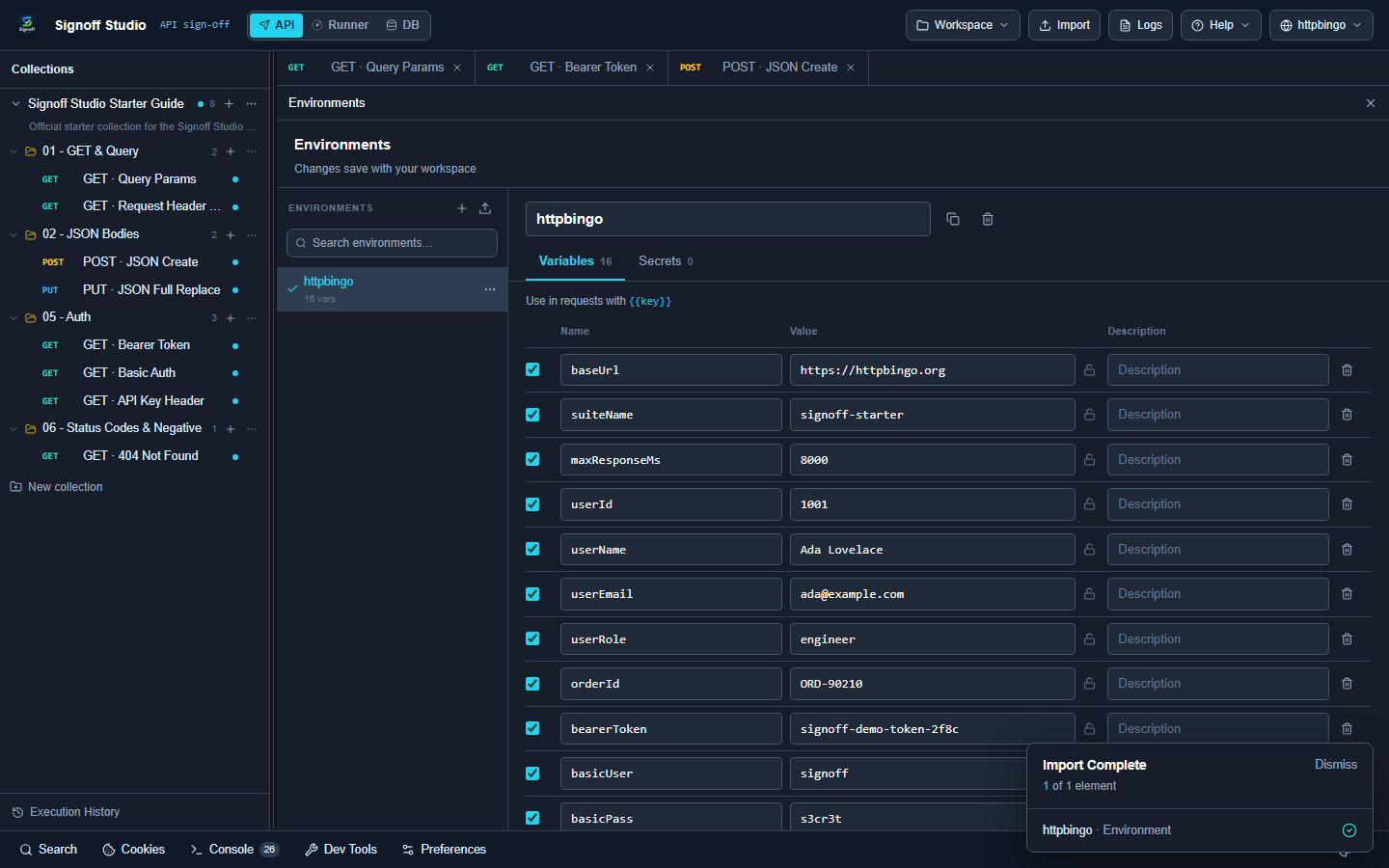
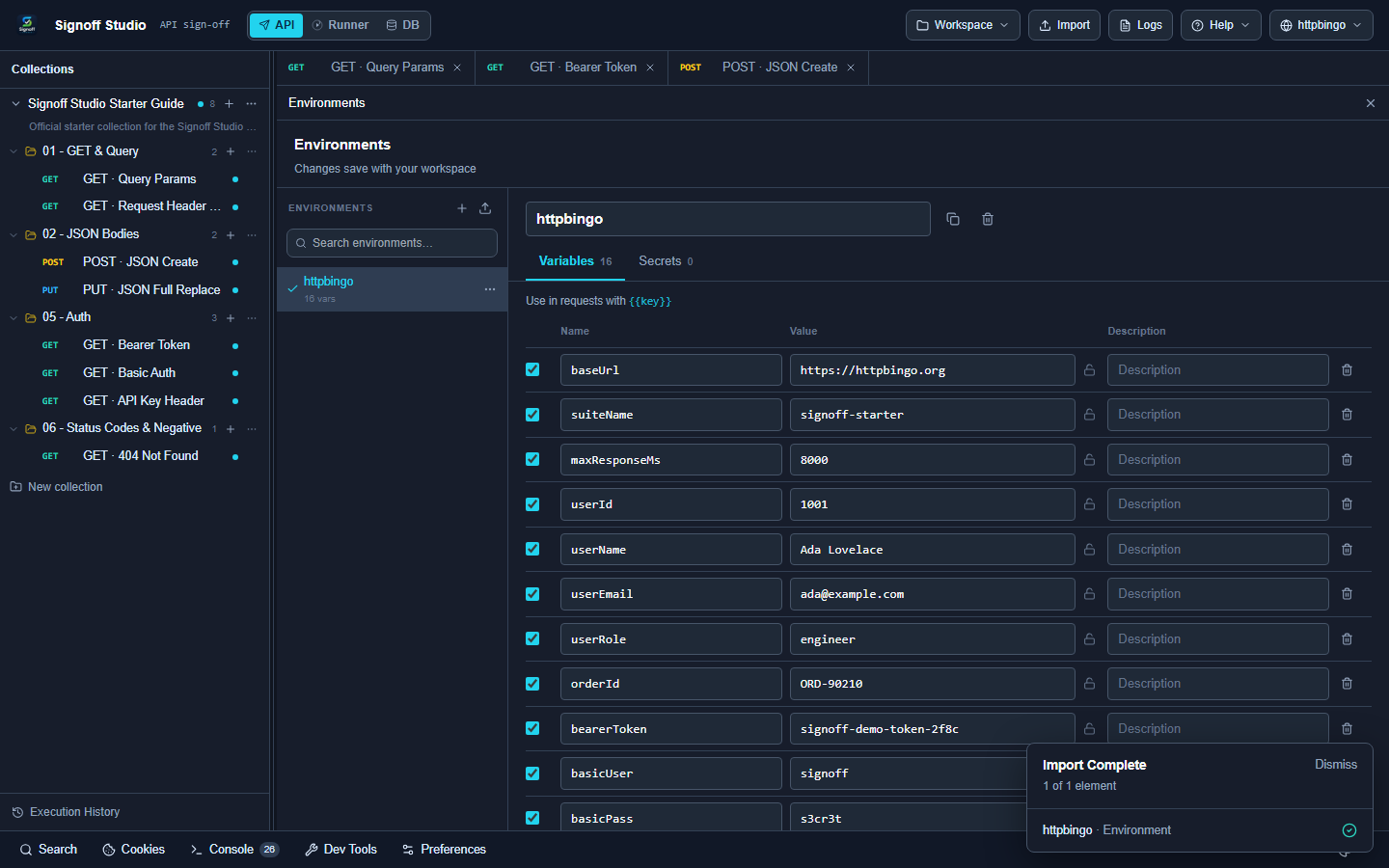
- How It Works (Windows App): Settings → Security → keep Never show secrets on; leave Include secrets in export off unless you have a secure channel.
- How It Works (VS Code Extension): Same flags when exposed; always review export dialogs before sharing.
- Code / Configuration Examples:
{
  "security": {
    "neverShowSecrets": true,
    "includeSecretsInExport": false
  }
}
- Edge Cases, Troubleshooting & Pro-Tips:
- Git commit hooks cannot save you if you exported secrets to a gist — keep
includeSecretsInExportfalse. - MCP tool output also redacts token-like fields.
- Git commit hooks cannot save you if you exported secrets to a gist — keep
Console (Preferences)
- Platform Availability: Full Parity
- Overview: Utility Console behavior + anonymous product ping. Also edited via bottom Preferences.
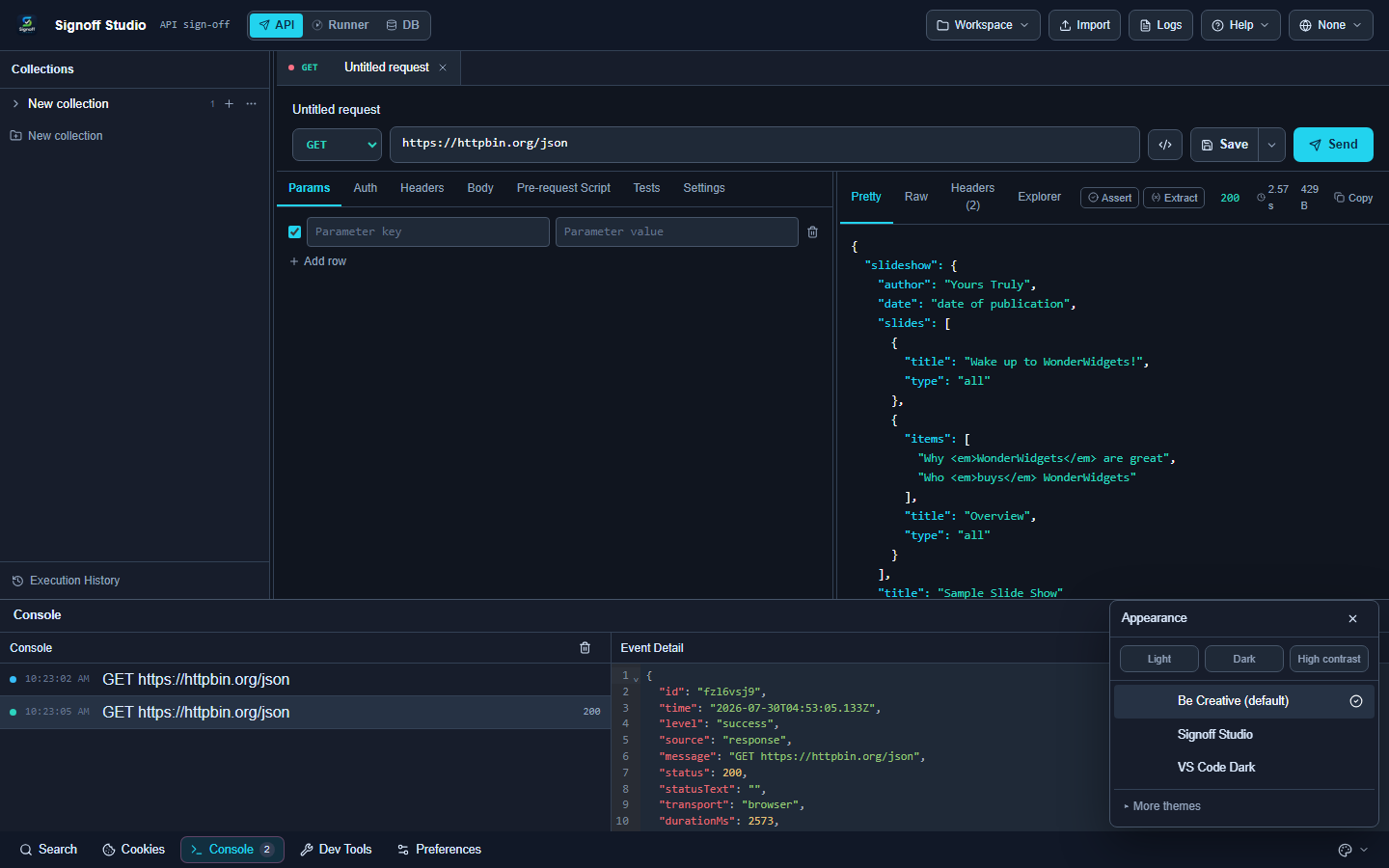
- How It Works (Windows App):
- Help → Preferences, utility Preferences, or Ctrl+,.
- Toggle open-on-error, preserve, compact, help-improve.
- Open Console to verify.
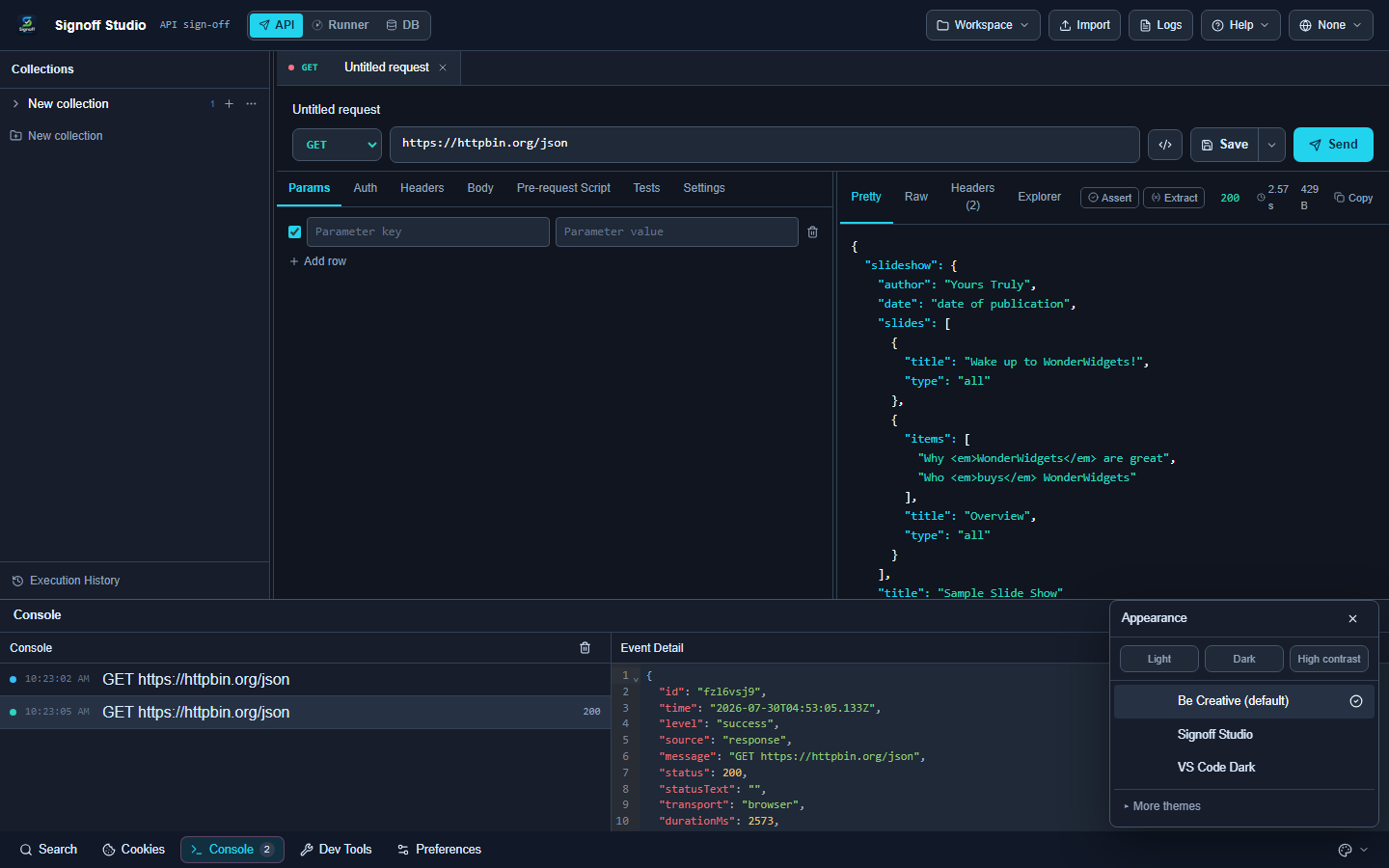
- How It Works (VS Code Extension): Same Preferences + Console in the webview.
- Code / Configuration Examples:
{
  "console": {
    "autoOpenOnError": true,
    "preserve": true,
    "compact": false,
    "helpImproveProduct": true
  }
}
| Setting | Effect |
|---|---|
autoOpenOnError |
Focus Console when a request fails |
preserve |
Keep earlier log events across sends |
compact |
Denser console rows |
helpImproveProduct |
Anonymous daily ping (install id, version, OS). No request bodies |
- Edge Cases, Troubleshooting & Pro-Tips:
- Ping is optional — turn off if policy requires.
- Compact mode helps long Runner script traces.
About & related overlay sections
- Platform Availability: Windows Settings overlay (About, Data & Storage, Integrations, Cache, Support)
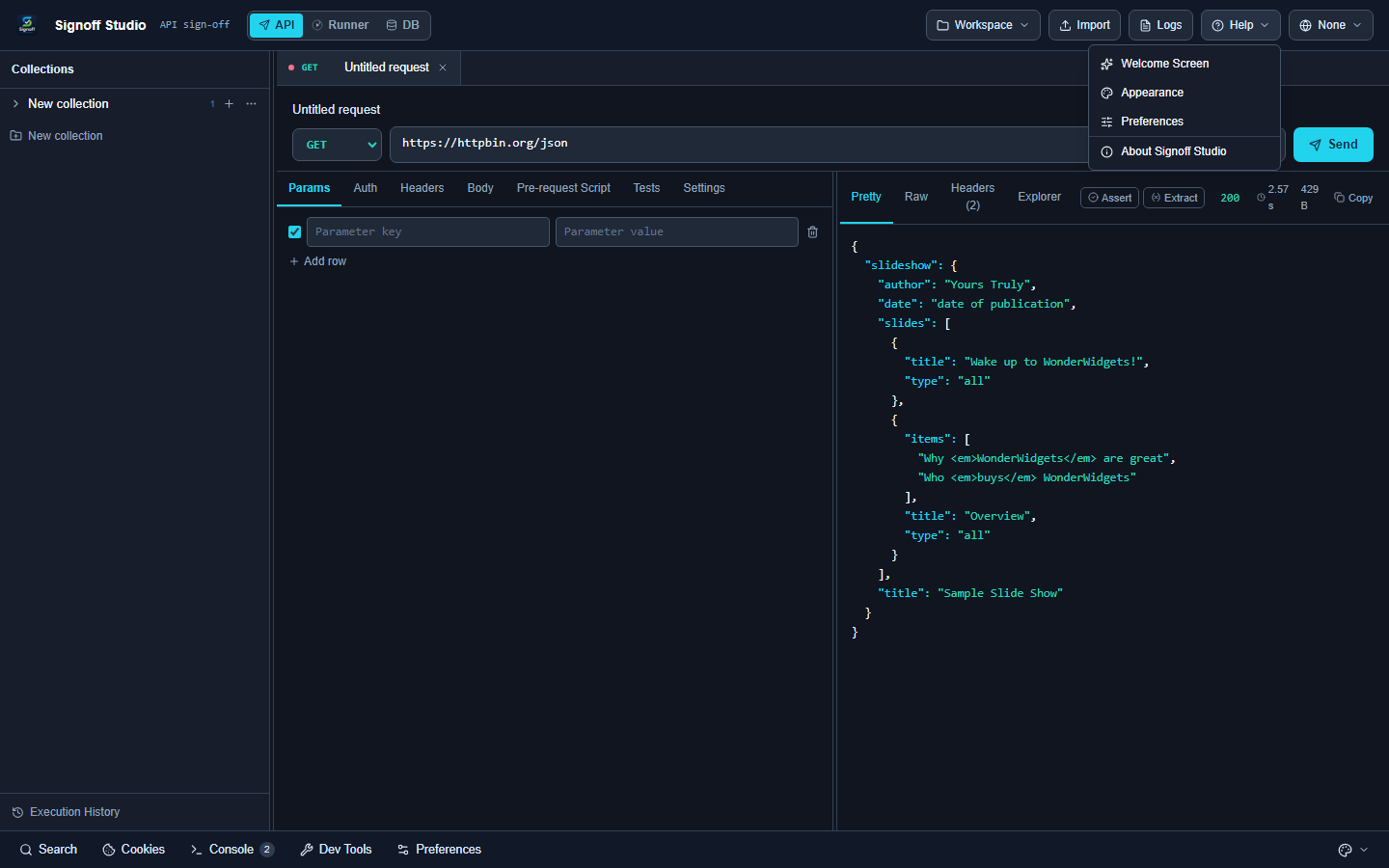
- Overview: About shows product version. Integrations notes Git lives on the Git tab (no cloud GitHub login on this surface). Data/Cache/Support cover paths and maintenance.
- How It Works (Windows App): Settings → About / Support / Data & Storage / Cache / Integrations.
- How It Works (VS Code Extension): Use Extensions detail for version; workspace paths via Reveal in Explorer.
- Code / Configuration Examples:
Windows app version:  26.8.5
VS Code extension:    0.2.58
Settings storage key: signoff:app-settings:v1
- Edge Cases, Troubleshooting & Pro-Tips:
- Export/import settings helpers omit raw secrets.
- Clearing cache does not delete workspace collections on disk.
GAP IDENTIFIED: Entire Settings overlay navigation (Data, Integrations, Cache, Support, About as overlay sections) is Windows Only. VS Code: Preferences + Marketplace extension details.