Signoff Studio Docs
Git workbench
Built-in Git mode for cloning, branching, staging, committing, and syncing Signoff workspaces. Windows App only — the VS Code extension intentionally omits the Git tab and routes you to VS Code Source Control instead.
Status, stage, commit, fetch, pull, push
- Platform Availability: Windows Only
- Overview: Full workbench over the workspace folder’s Git repo: see status, stage hunks/files, commit, and sync with remotes without leaving Signoff Studio.
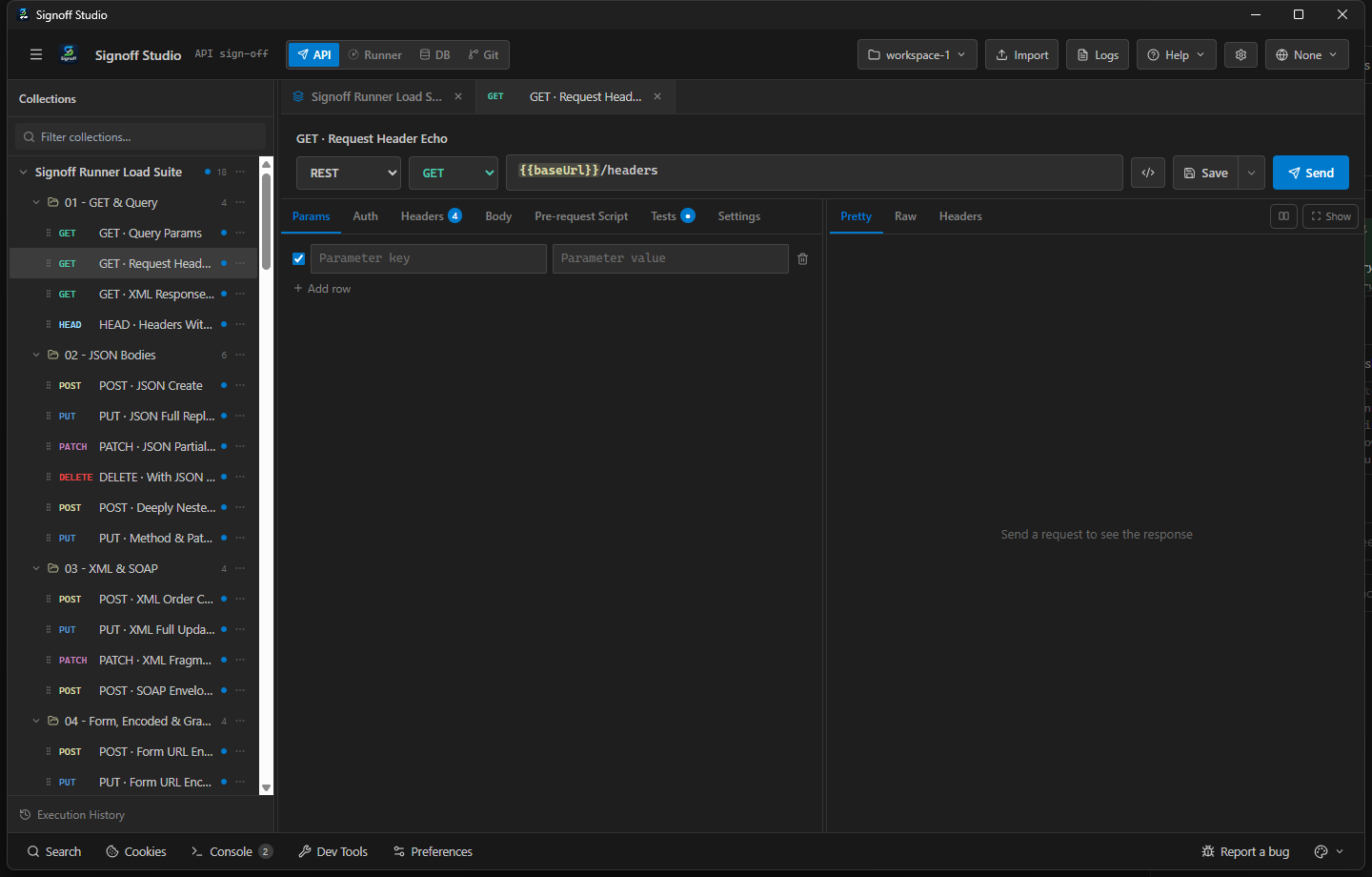
- How It Works (Windows App):
- Switch the top-bar mode to Git.
- Review status; stage files; enter a commit message; Commit.
- Fetch / Pull / Push using the configured remotes.
- How It Works (VS Code Extension):
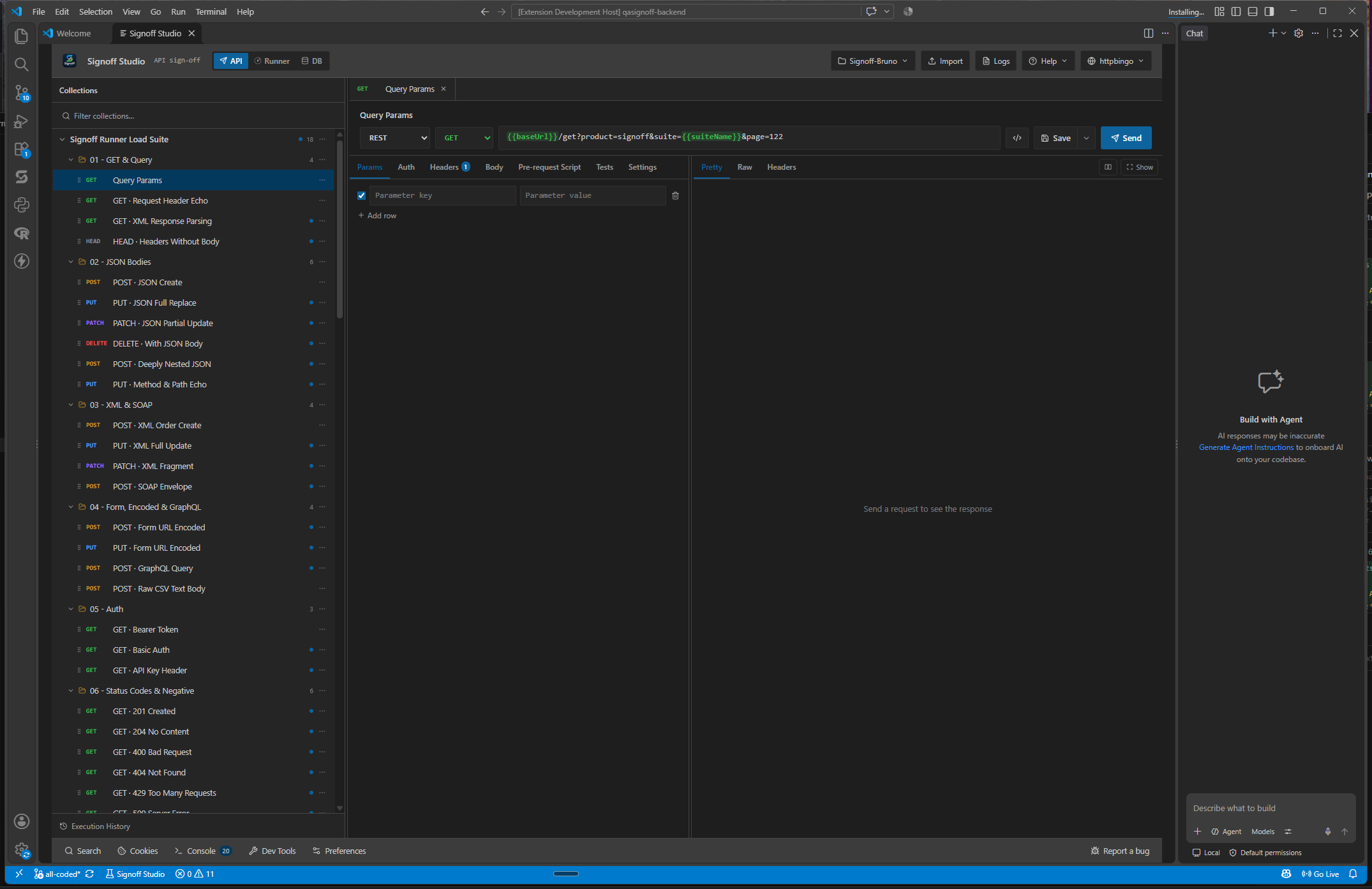
- There is no Git mode tab in the webview.
- Use VS Code Source Control on the same workspace folder on disk.
- Keep editing collections in Signoff; commit with the IDE.
- Code / Configuration Examples:
# Equivalent CLI outside Signoff
git status
git add collections environments
git commit -m "Update Pets collection asserts"
git pull --rebase
git push
- Edge Cases, Troubleshooting & Pro-Tips:
- Browser/dev hosts report Git unavailable — use the packaged Windows app.
- Never commit secret env values; keep secrets stripped from committed files.
- Large binary artifacts in reports/ should stay gitignored.
GAP IDENTIFIED: Git workbench (status/stage/commit/sync/branches/remotes/clone/init/import) is Windows Only. VS Code users should use the built-in Source Control view and terminal Git on the shared workspace folder.
Branches, remotes, clone, init
- Platform Availability: Windows Only
- Overview: Create/switch branches, manage remotes, clone repositories, and initialize Git on a folder. Designed for teams that keep API collections per JIRA branch.
- How It Works (Windows App):
- Open Git → branch controls to create or switch.
- Add/edit remotes (e.g.
origin) via the remotes UI. - Clone a URL into a folder or Init Git on an existing Signoff workspace.
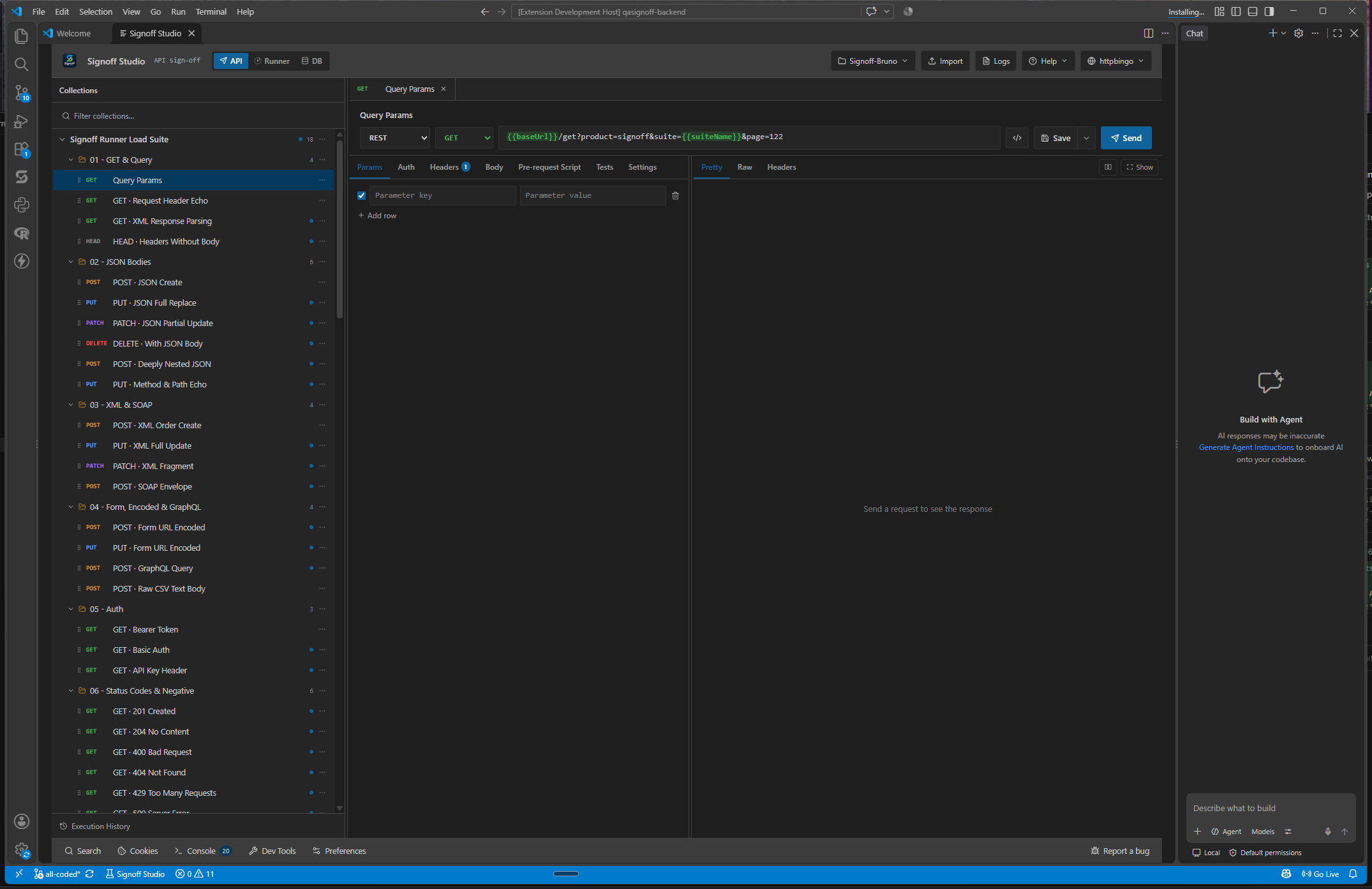
- How It Works (VS Code Extension): Use
git clone/ Source Control / Command Palette Git commands in VS Code.
- Code / Configuration Examples:
git clone https://git.example.com/qe/pets-collections.git
cd pets-collections
# Open this folder as a Signoff workspace
- Edge Cases, Troubleshooting & Pro-Tips:
- Cloud GitHub/GitLab OAuth login is not on the Windows Settings → Integrations surface — use HTTPS remotes with credential manager or SSH agents.
- After clone, use Switch Repository / connect workspace flows to bind Signoff to the repo root or nested workspace.
Git import panel
- Platform Availability: Windows Only
- Overview: Guided import for cloning or opening a repository and connecting a Signoff workspace, including branch switching for ticket-based collection work.
- How It Works (Windows App):
- From Git mode, open the import / connect flows.
- Clone or open an existing repo; pick the Signoff workspace root if nested.
- Switch branches when your team isolates collections per ticket.
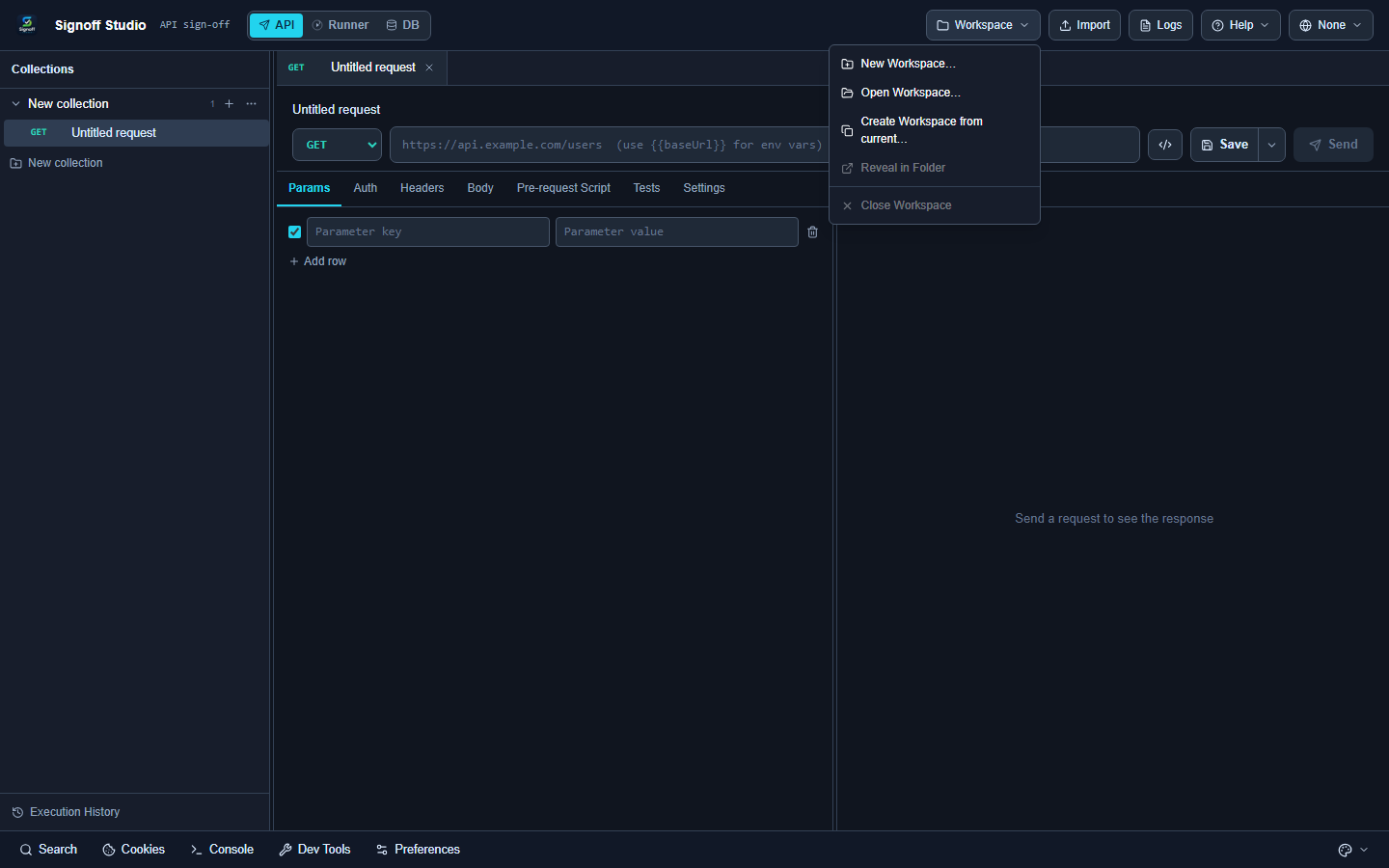
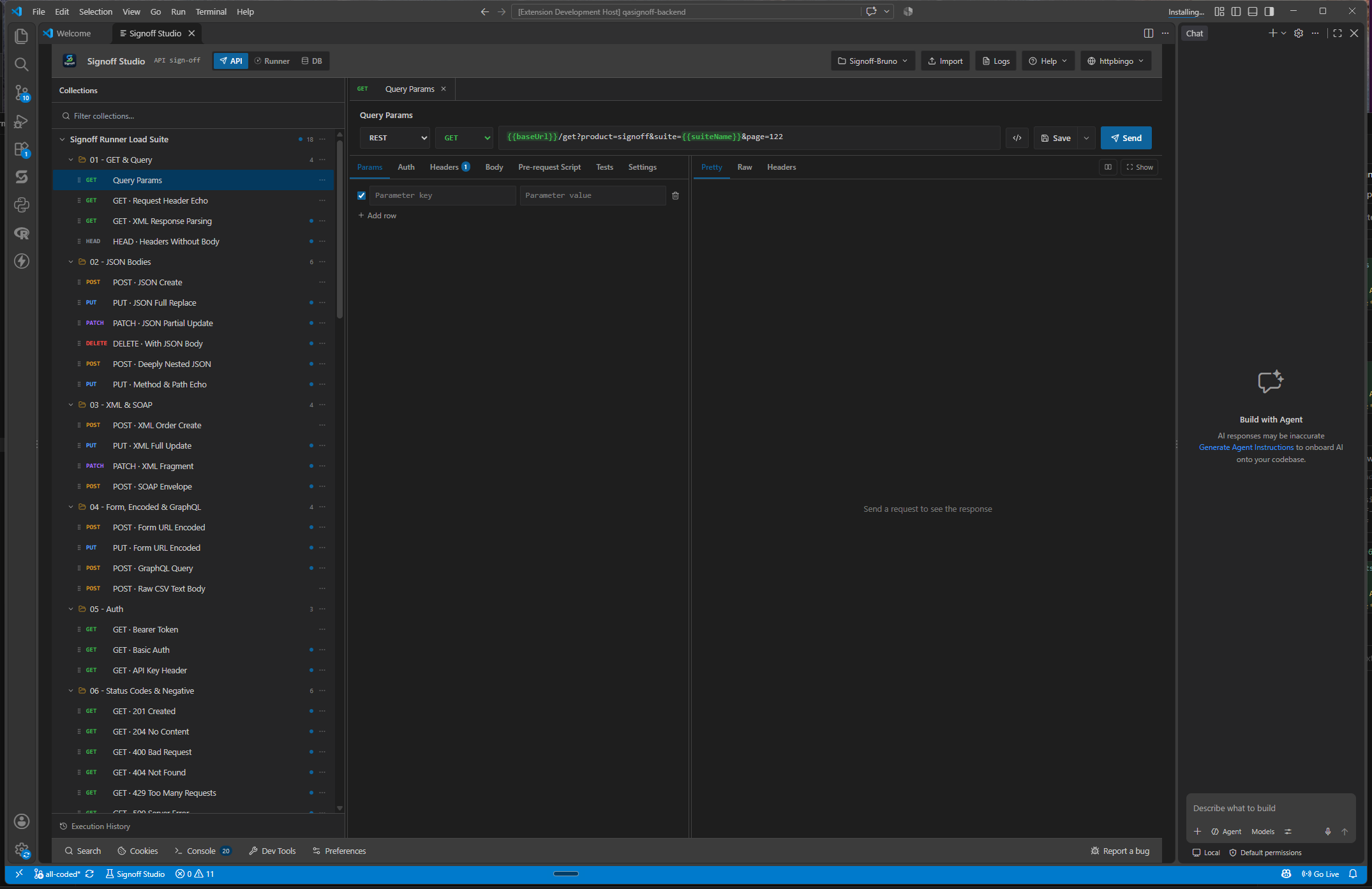
- How It Works (VS Code Extension): Import workspaces via Signoff Studio: Import Workspace and manage Git separately in the IDE.
- Code / Configuration Examples:
Repo root/
  signoff-workspace.json
  collections/
  environments/
  runner/schedules.json
- Edge Cases, Troubleshooting & Pro-Tips:
- Multiple Signoff workspaces in one monorepo: pick the correct relative root when connecting.
- Schedules JSON is Git-friendly; machine-local monitor status is not — don’t expect last-run badges to match across clones.
GAP IDENTIFIED: No parity path for Git import panel inside VS Code. Workaround: clone with VS Code/terminal, then Signoff Studio: Open Workspace / Import Workspace on the folder.