Signoff Studio Docs
Monitors & scheduler
Local monitors schedule collection runs on a heartbeat while the Signoff UI is open. Definitions can sync with the workspace as Git-friendly runner/schedules.json; last-run status stays machine-local.
Important: Schedules only fire while the app or VS Code Signoff panel is open. For always-on monitoring, use the Windows app (Microsoft Store build recommended).
Create & edit schedules
- Platform Availability: Partial (UI Full Parity; always-on / desktop notify prefer Windows)
- Overview: Create once / daily / weekly / monthly / cron schedules bound to a collection (or folder) target, environment, and timezone. Enable/disable without deleting the definition.
- How It Works (Windows App):
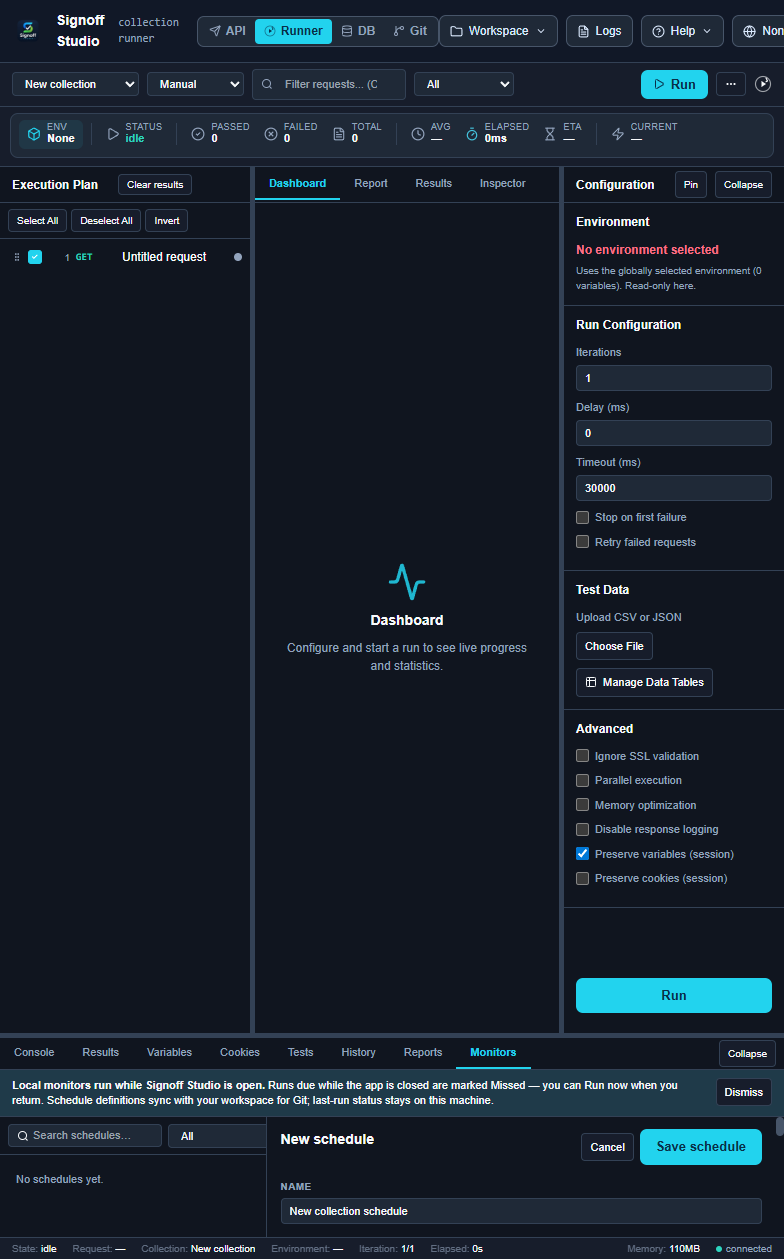
- Open Runner → bottom dock Monitors (split view).
- Create a schedule: name, recurrence (or cron), timezone, environment, target collection/folder.
- Save and leave Signoff Studio running so the 30s heartbeat can fire due runs.
- How It Works (VS Code Extension):
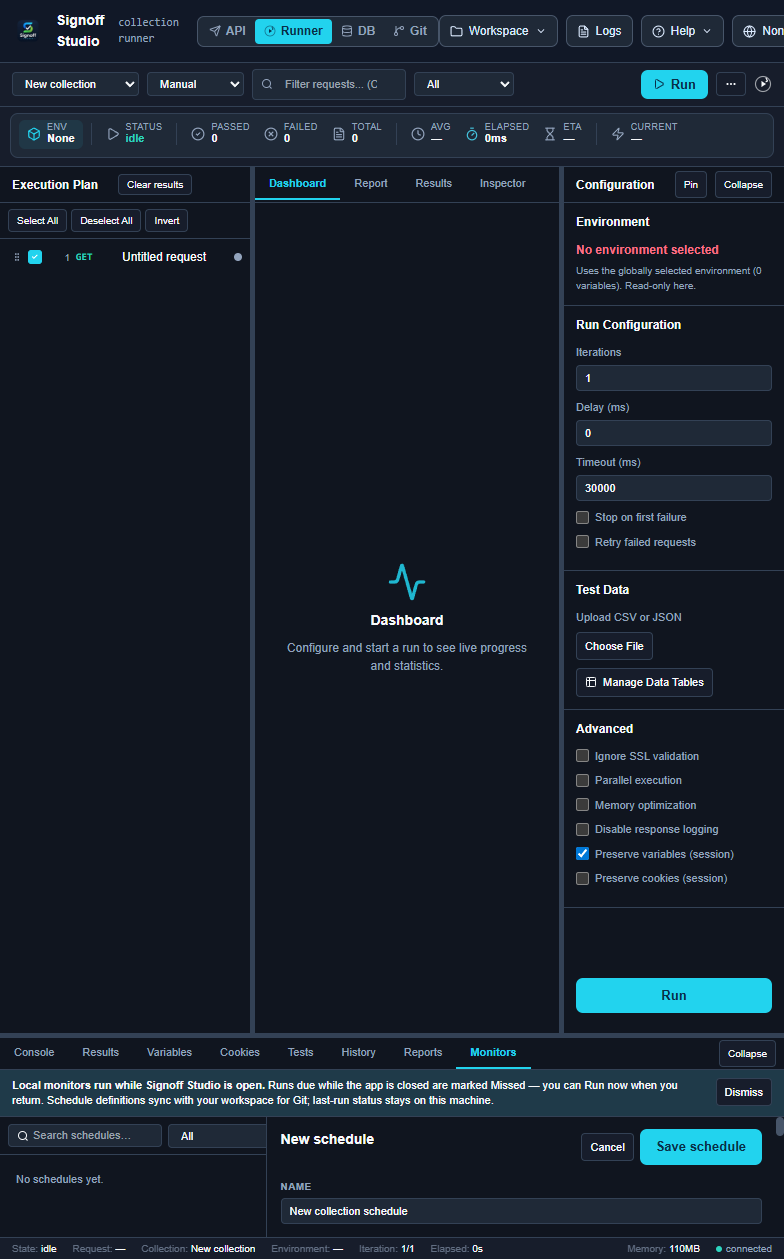
- Open Runner → Monitors in the shared webview.
- Configure the same fields (Environment dropdown + searchable timezone picker).
- Keep the Signoff Studio editor tab/panel open; closing VS Code pauses fires.
- Code / Configuration Examples:
{
  "id": "sched_smoke_daily",
  "name": "Daily smoke",
  "enabled": true,
  "rule": { "type": "daily", "at": "09:00" },
  "timezone": "Asia/Kolkata",
  "environmentId": "env_httpbingo",
  "target": { "collectionId": "col_starter" }
}
Cron example:
0 */6 * * *
- Edge Cases, Troubleshooting & Pro-Tips:
- Invalid cron is rejected up front — fix the expression before enabling.
- If the environment was deleted, the schedule shows attention: pick another env and save.
- Missed runs while the UI was closed are counted locally; they do not backfill automatically.
GAP IDENTIFIED: Failure desktop notifications are Windows Only. VS Code acknowledges schedules in webview mode (
runner.schedule→mode: "webview") but does not run extension-host cron. Prefer the Windows Store app for unattended monitors.
Environment & timezone pickers
- Platform Availability: Full Parity (UI)
- Overview: Every schedule pins an environment and a searchable IANA timezone so
{{vars}}and wall-clock rules stay explicit across laptops. - How It Works (Windows App):
- In the schedule editor, open Environment and pick from workspace envs.
- Open the timezone picker; type to filter (e.g.
Kolkata,UTC,New_York). - Save — next fire uses that env snapshot resolution path.
- How It Works (VS Code Extension):
- Same Environment dropdown and searchable timezone control.
- Ensure the workspace with those env files is the active Signoff workspace.
- Switch workspace → re-open Monitors and confirm targets still resolve.
- Code / Configuration Examples:
timezone: Asia/Kolkata
environment: httpbingo
- Edge Cases, Troubleshooting & Pro-Tips:
- DST shifts: prefer explicit IANA zones over fixed UTC offsets in the UI.
- Attention reason Open the workspace this schedule belongs to means the schedule’s workspace root is not loaded.
Runtime while open & Store recommendation
- Platform Availability: Partial — copy shown on both; Windows recommended for always-on
- Overview: SchedulerService heartbeats about every 30s inside the webview. No fire path exists when the UI is closed. Product copy recommends the Microsoft Store Windows app when monitors must keep running.
- How It Works (Windows App):
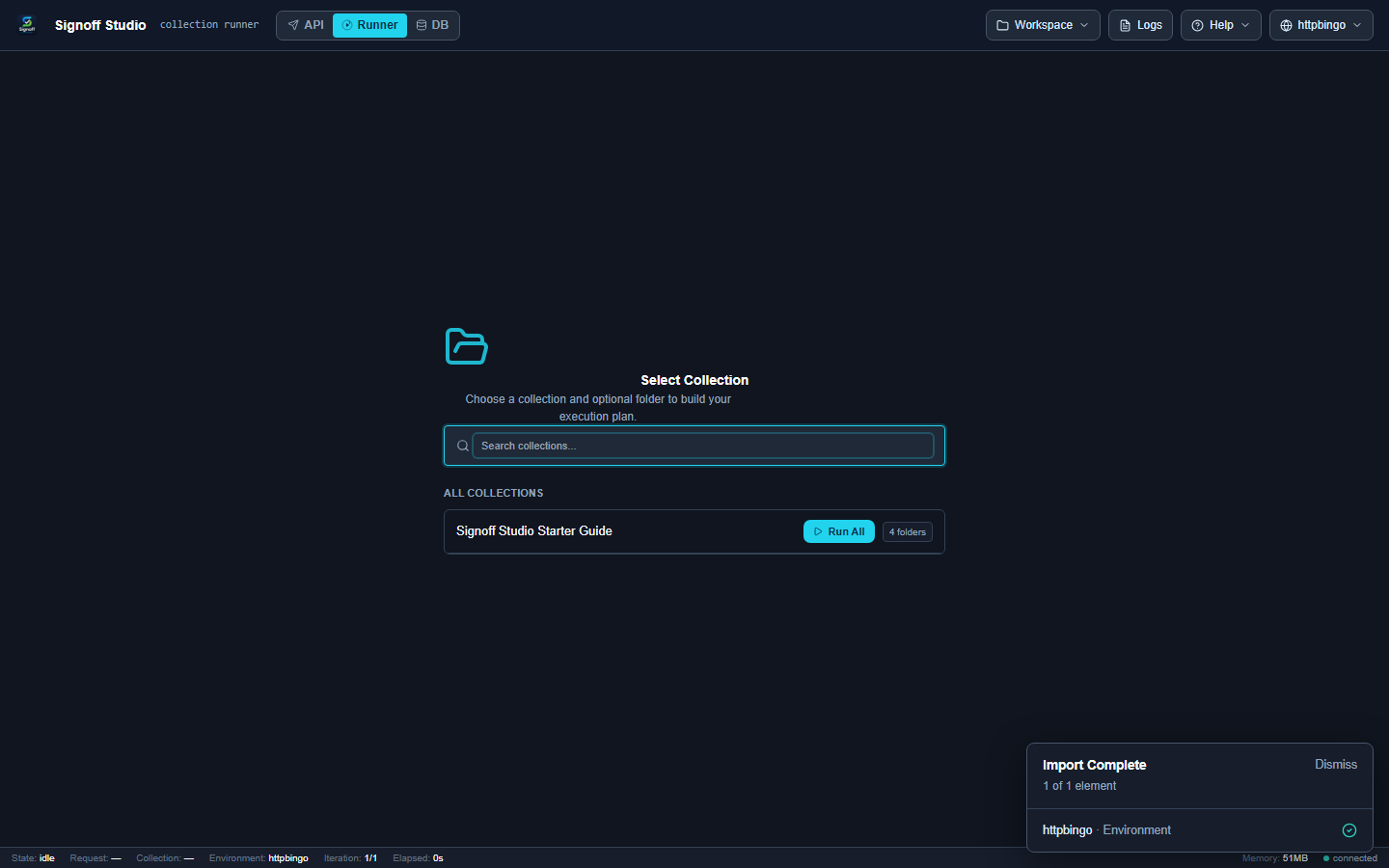
- Leave Signoff Studio open (minimize is fine).
- On failure, desktop notify can surface (Windows).
- Install from Microsoft Store when you want a durable always-available desktop host.
- How It Works (VS Code Extension):
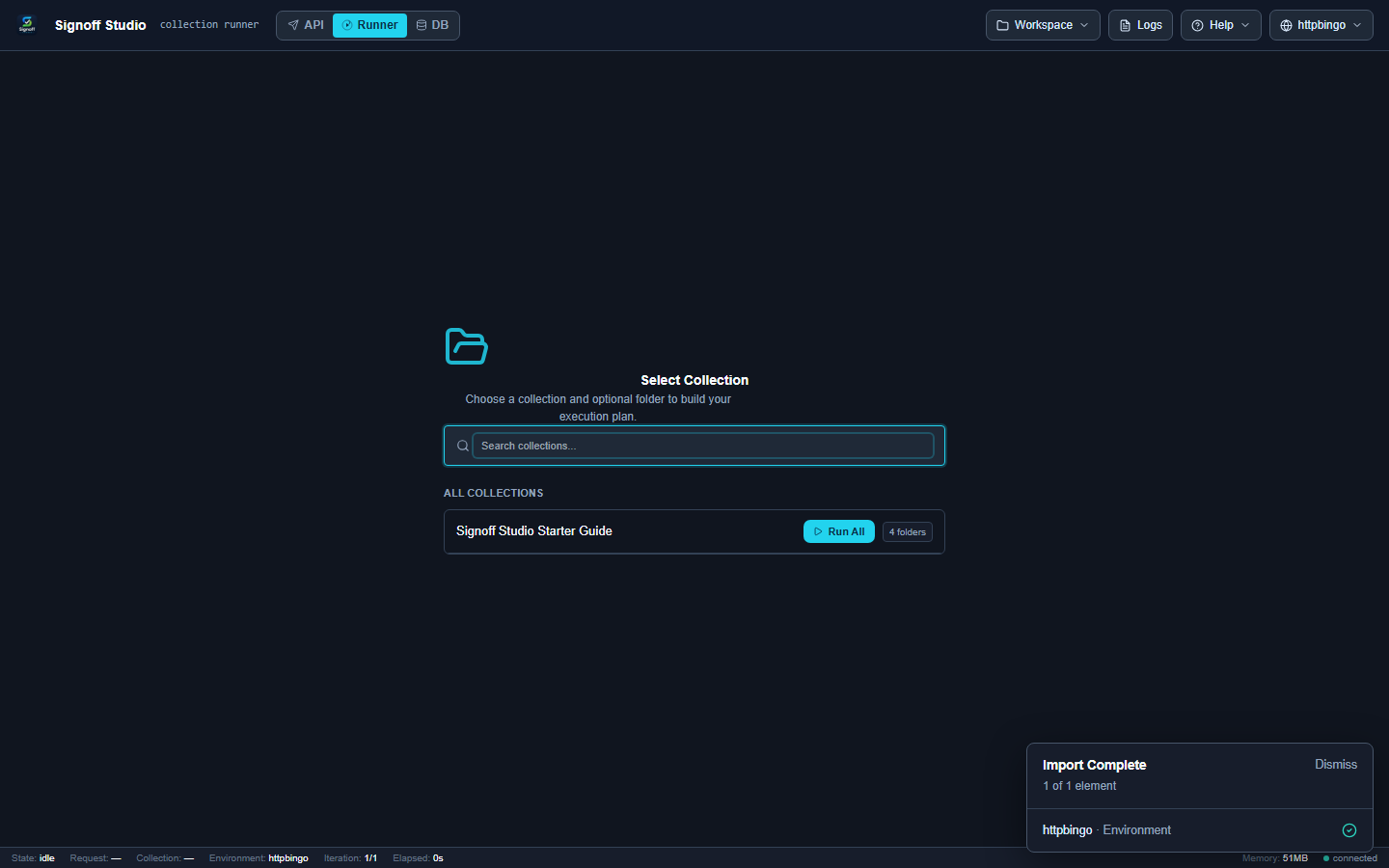
- Leave the Signoff webview open in a VS Code window.
- Read the in-product Store recommendation if you need always-on.
- For CI periodicity, use CLI/
cronOS schedulers instead of in-app monitors.
- Code / Configuration Examples:
# CI alternative to in-app monitors
npm run runner -- run -c ./smoke.signoff.json -e ./ci.signoff.env.json --reporters junit -o ./reports --bail
- Edge Cases, Troubleshooting & Pro-Tips:
- Sleeping laptops pause heartbeats — use a plugged-in always-on machine for production monitors.
- Network failures must show a readable connection message and the endpoint URL.
GAP IDENTIFIED: In-app monitors are not a substitute for OS/
cron/CI schedulers when the IDE or app is closed. Windows App (+ Store) is the supported always-on path; VS Code is best-effort while the panel remains open.