Signoff Studio Docs
Install
Get Signoff Studio running on Windows App v26.8.5 and/or VS Code Extension v0.2.58. Both hosts share the same React webview for API / Runner / DB. Continue with the Starter Guide after install.
Windows installer (NSIS / Store)
- Platform Availability: Windows Only
- Overview: Install via
SignOff-studio-Setup.exe(NSIS) or the Microsoft Store APPX build. Store is recommended when you want durable always-on monitors while the app stays installed and easy to update. - How It Works (Windows App):
- Download from qasignoff.com/download.
- Run
SignOff-studio-Setup.exe(or install from Microsoft Store). - Accept the license; choose install folder (default
C:\Program Files\Signoff Studio). - Optionally create a Desktop shortcut → Install → Finish (app launches).
- How It Works (VS Code Extension): N/A — use Marketplace / VSIX below.
- Code / Configuration Examples:
Requirements: Windows 10 or later
Default install: C:\Program Files\Signoff Studio
Workspaces:     %USERPROFILE%\Documents\Signoff Studio\
- Edge Cases, Troubleshooting & Pro-Tips:
- Uninstall keeps
Documents\Signoff Studio\workspaces. - Corporate lockdown: prefer per-user install when Program Files is blocked.
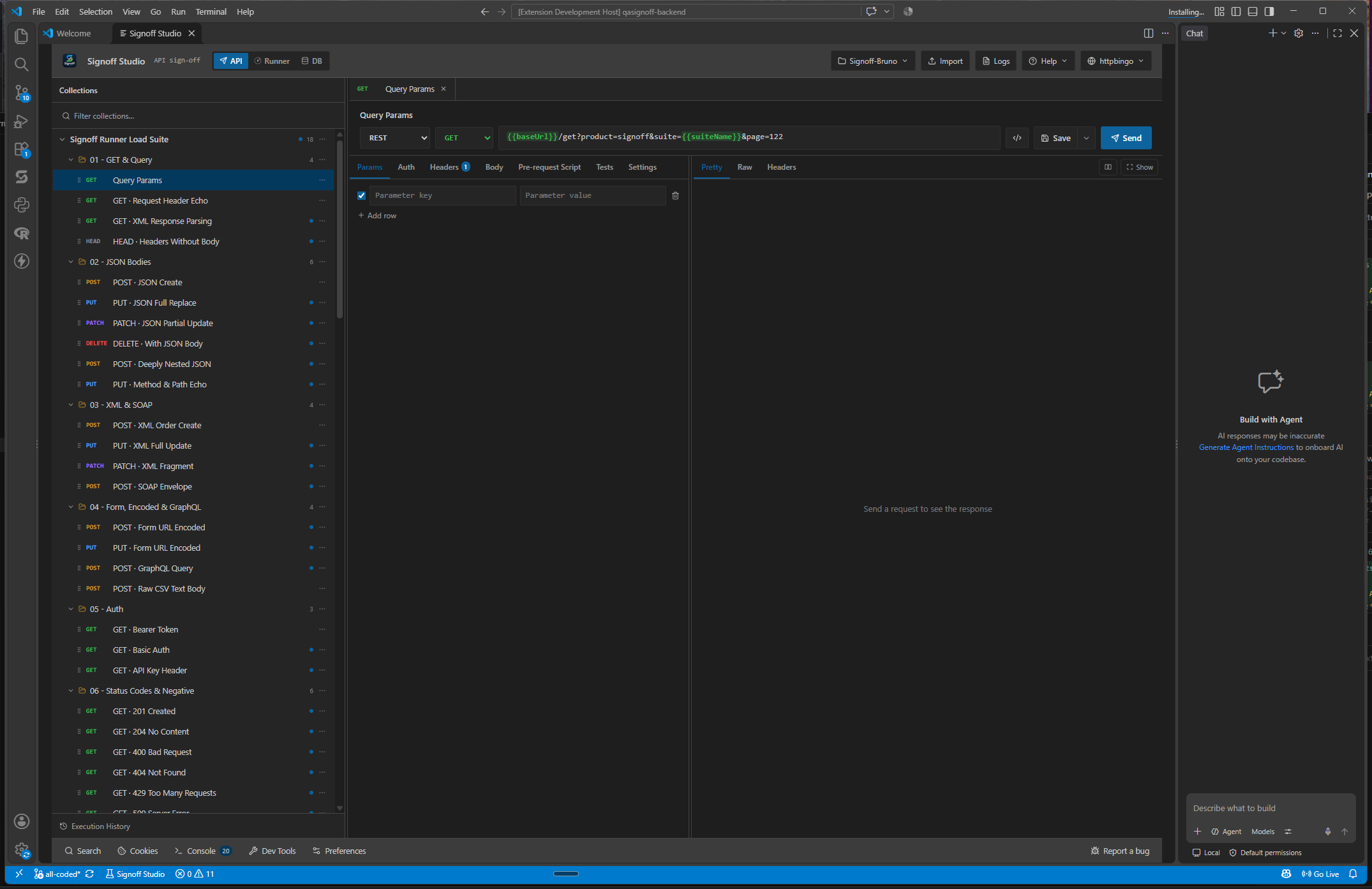
- After upgrade, confirm Help → About shows 26.8.5 (or newer).
- Uninstall keeps
GAP IDENTIFIED: Windows installers are not available inside VS Code. Extension users still benefit from installing the Windows app for Git workbench and always-on monitors.
VS Code Marketplace / VSIX
- Platform Availability: VS Code Only
- Overview: Install Signoff Studio (
qasignoff.qasignoff-vscode-extension) from Marketplace for auto-updates, or sideload a.vsixfor QA builds (sideloaded builds do not auto-update). - How It Works (Windows App): N/A for extension packaging — optional companion install.
- How It Works (VS Code Extension):
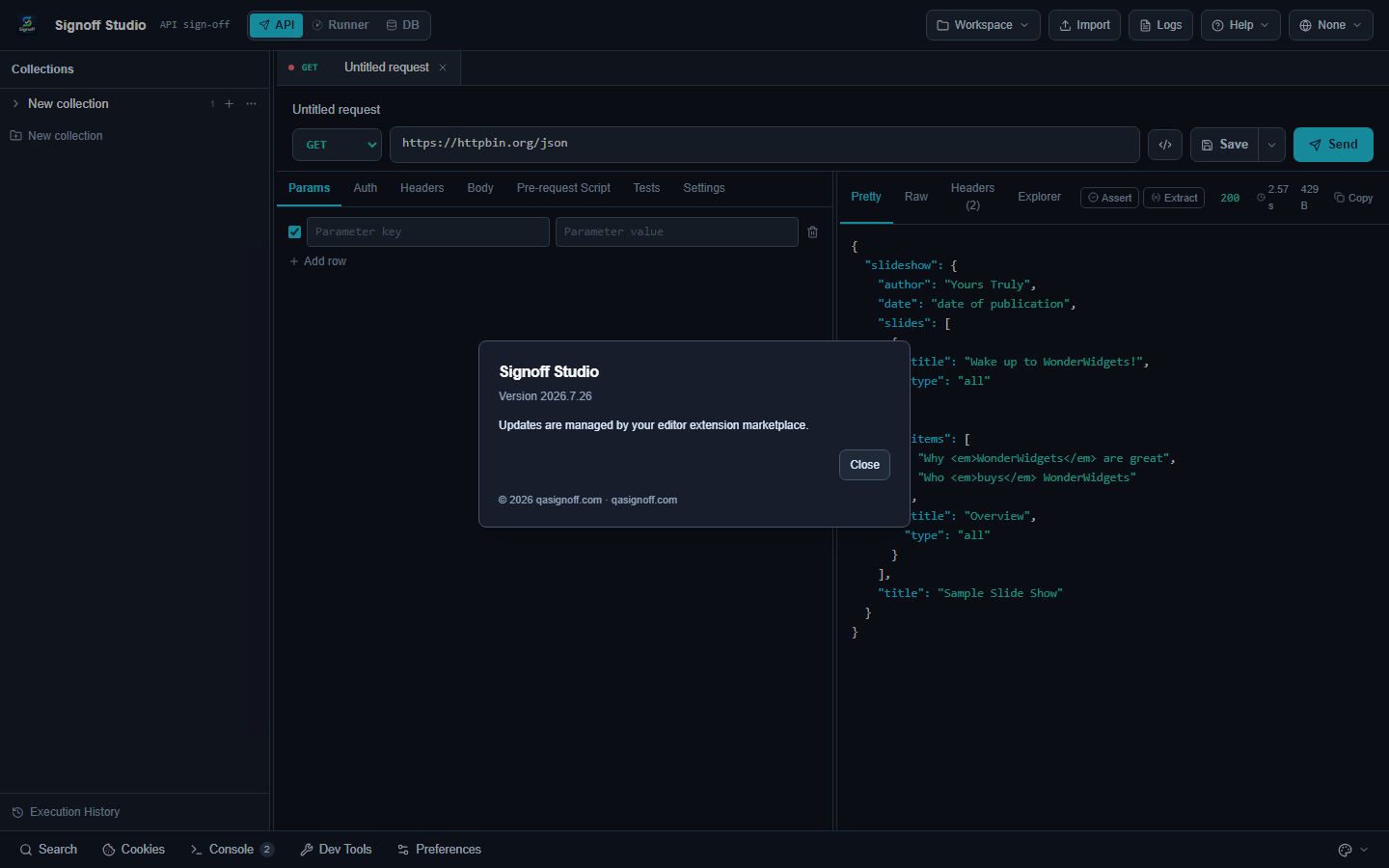
- Extensions view → search Signoff Studio → Install (or
code --install-extension path\to\signoff.vsix). - Open the Signoff Studio Activity Bar icon.
- Click Open Signoff Studio or Command Palette → Signoff Studio: Open.
- Extensions view → search Signoff Studio → Install (or
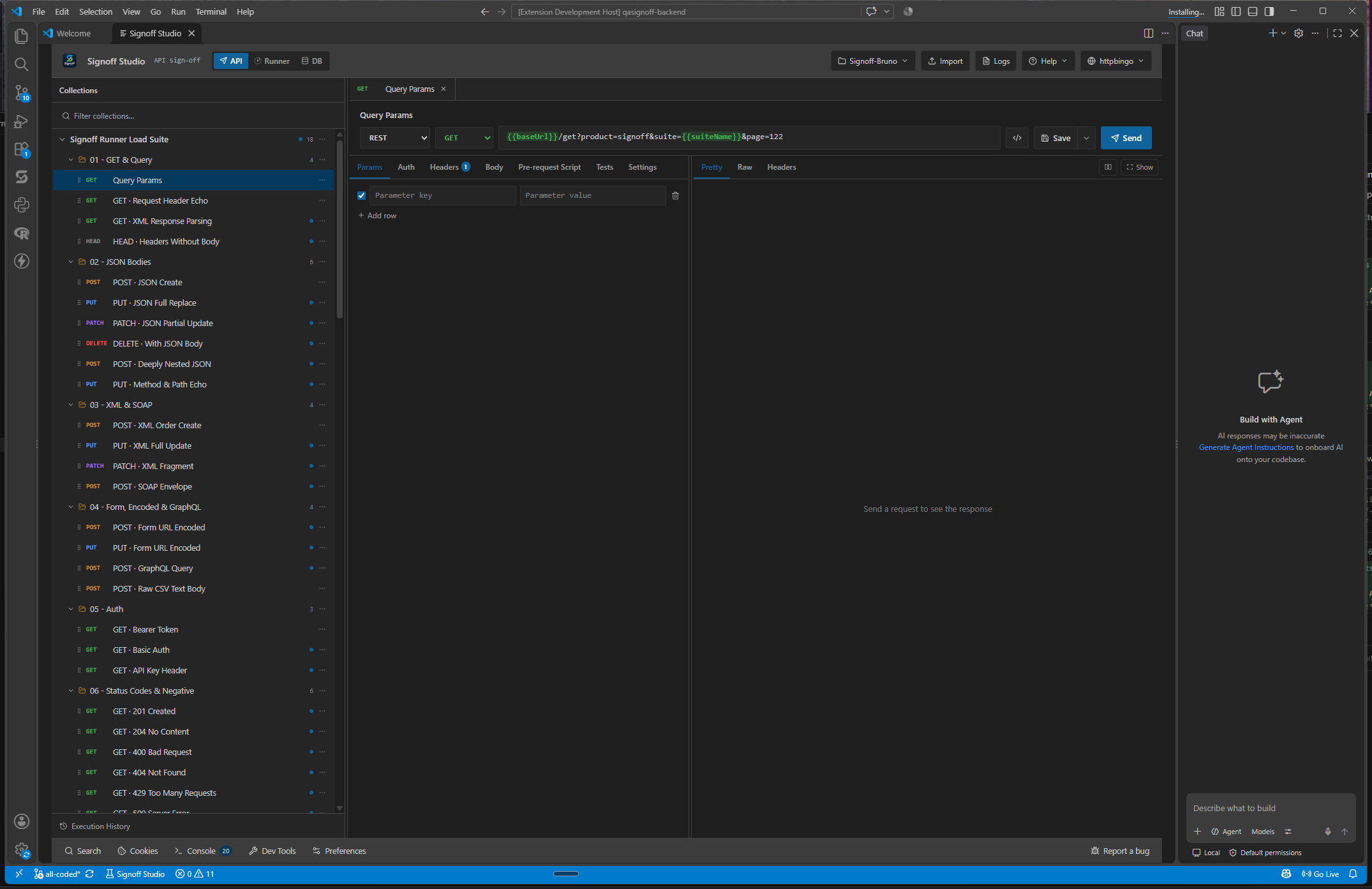
- Code / Configuration Examples:
code --install-extension qasignoff.qasignoff-vscode-extension
code --list-extensions --show-versions | findstr qasignoff
- Edge Cases, Troubleshooting & Pro-Tips:
- No
contributes.configurationand no contributed keybindings — configure inside the webview. - If the webview is blank after update: Developer: Reload Window.
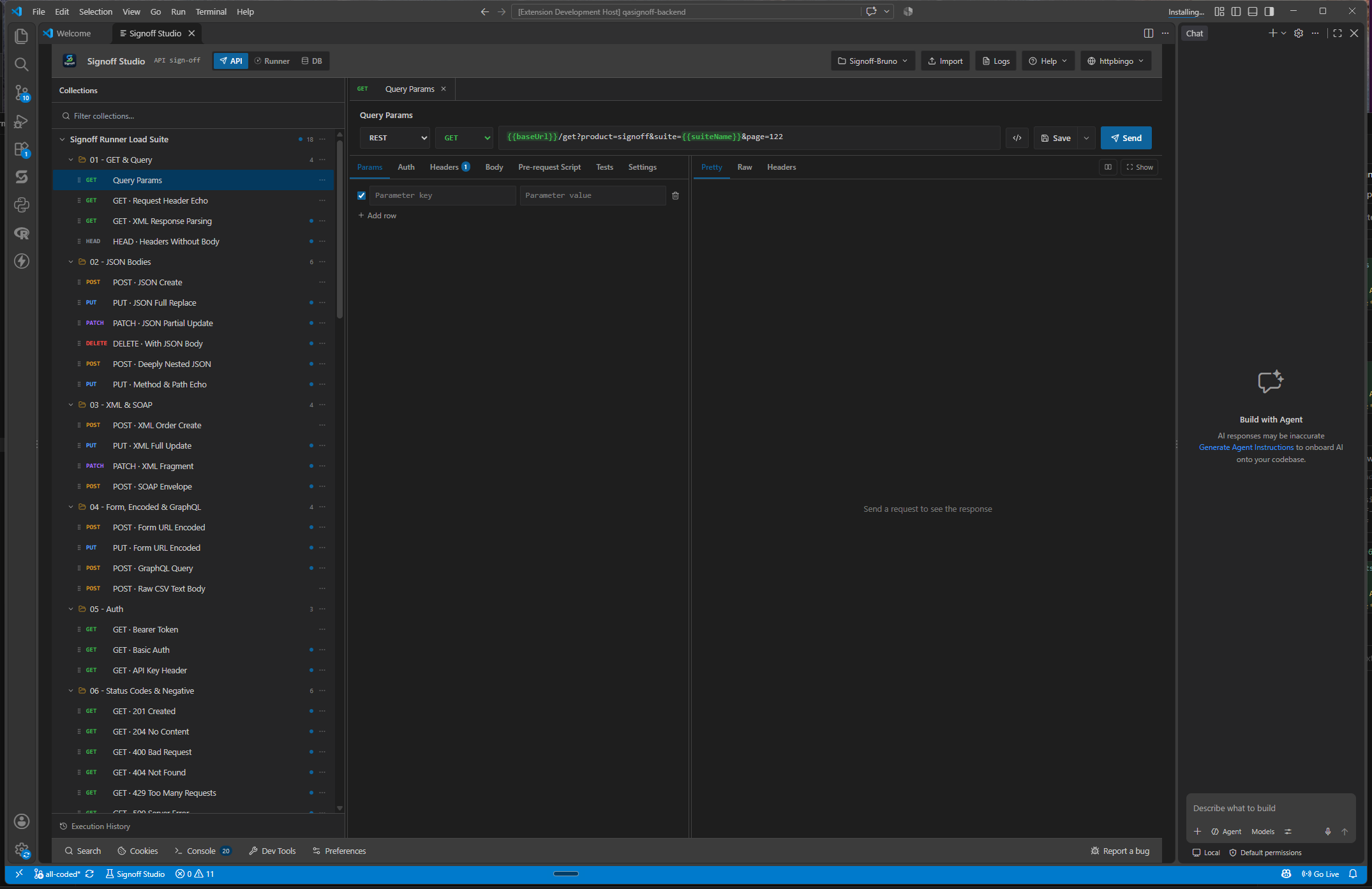
- Confirm extension version 0.2.58 (or newer) via Extensions detail.
- No
GAP IDENTIFIED: VS Code has no native Git tab and monitors only fire while the panel is open. Install the Windows Store app when you need those capabilities.
Welcome & first workspace
- Platform Availability: Full Parity (Welcome UI). Default paths Partial.
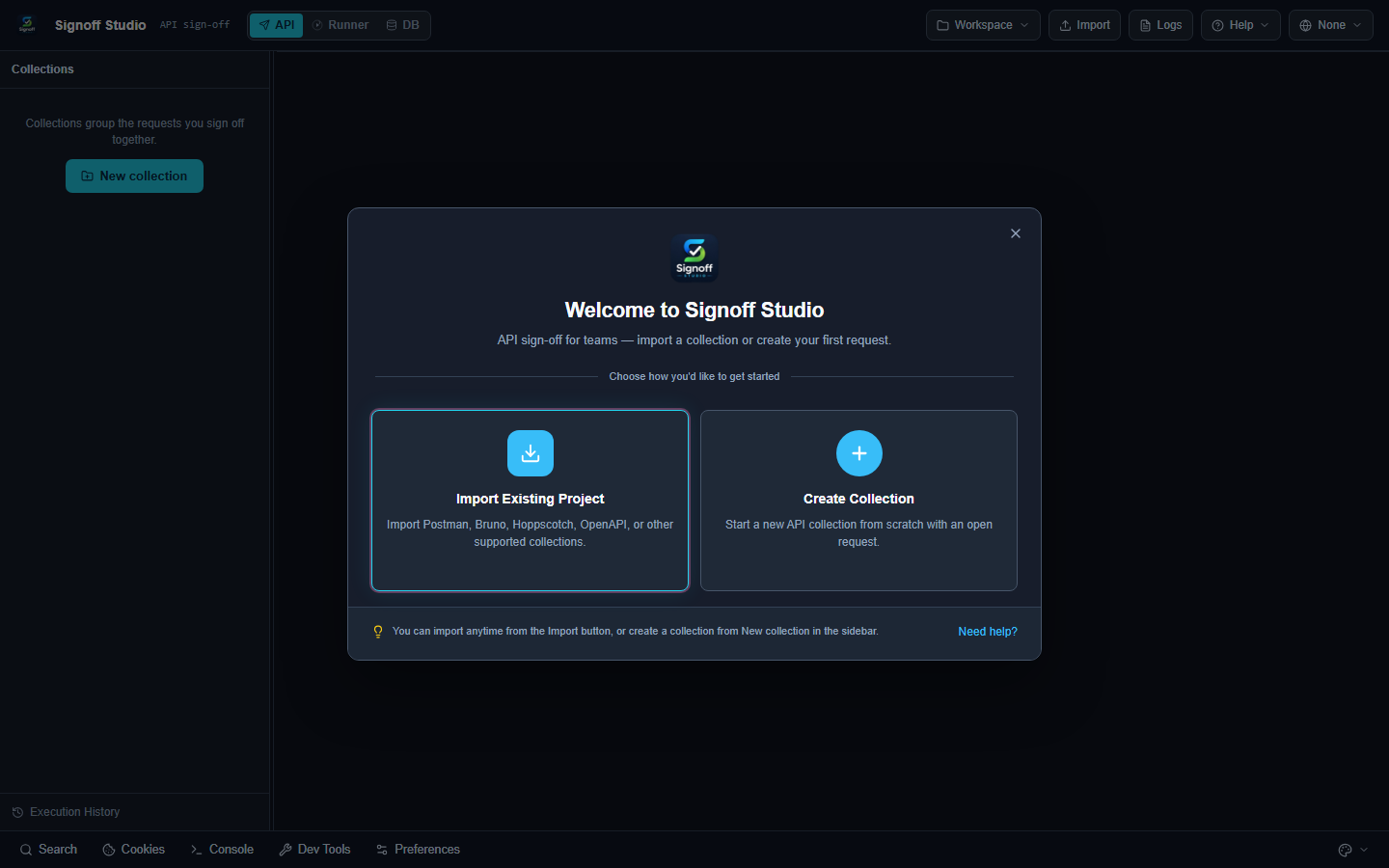
- Overview: First launch offers Import Existing Project or Create Collection. Dismiss with X and return via Import or + New collection. Prefer importing the Starter Guide collection + httpbingo env.
- How It Works (Windows App):
- Launch the app → Welcome.
- Import
signoff-studio-starter.signoff.json+ env, or create a blank collection. - Workspaces default under
Documents\Signoff Studio\.
- How It Works (VS Code Extension):
- Open Signoff Studio from Activity Bar / command.
- Same Welcome choices inside the editor webview.
- Pick or create a workspace folder (path may differ from Documents default).
- Code / Configuration Examples:
Starter downloads (see Quick Start):
- Edge Cases, Troubleshooting & Pro-Tips:
- Closing Welcome does not delete data.
- Use workspace menu /
qasignoff.manageWorkspacesto juggle multiple roots.
Modes after install
- Platform Availability: API / Runner / DB Full Parity; Git Windows Only
- Overview: Top bar switches product modes. Schedulers only run while the UI is open.
- How It Works (Windows App): Use API, Runner, DB, Git.
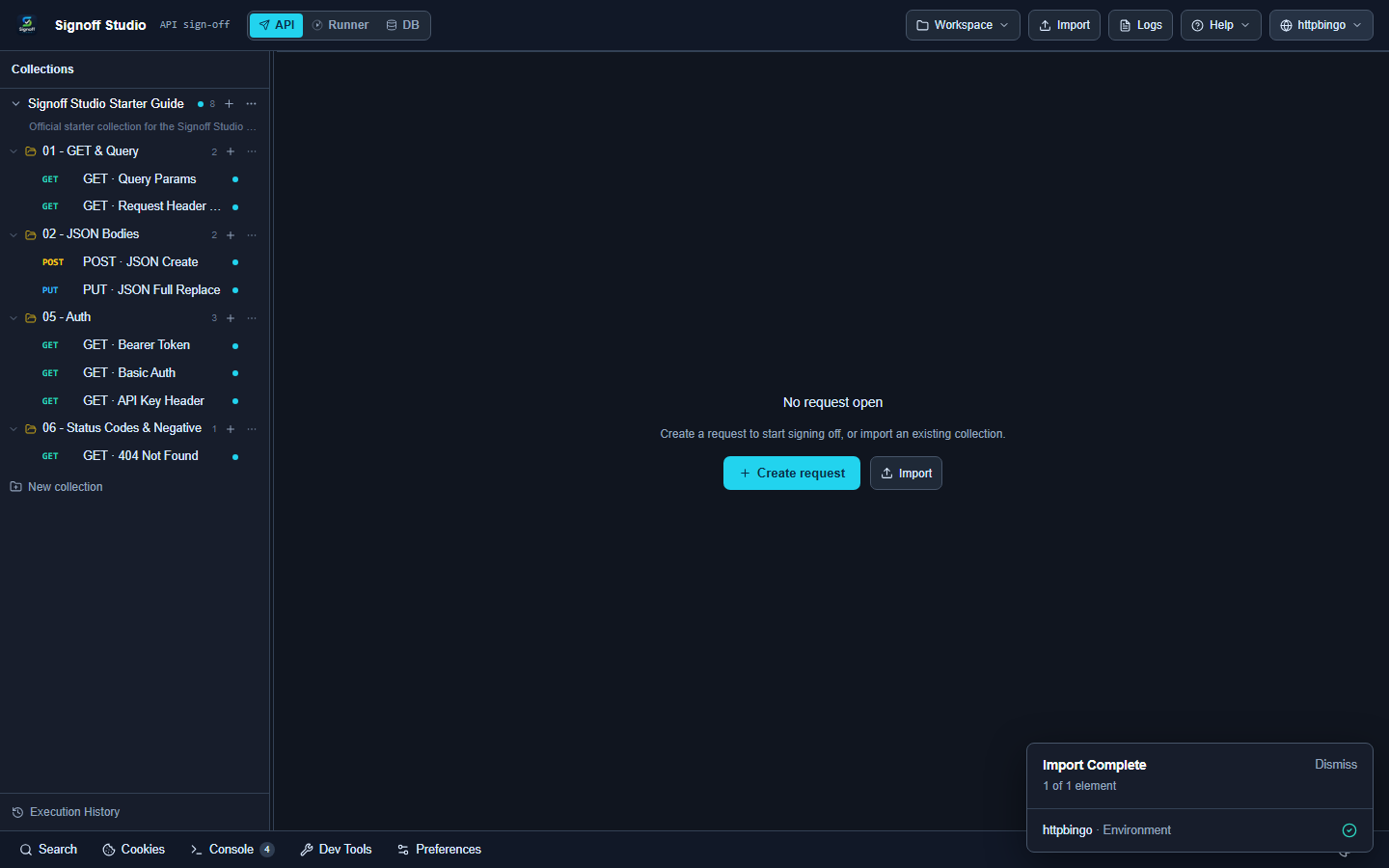
- How It Works (VS Code Extension): Use API, Runner, DB only.
- Code / Configuration Examples:
| Mode | For |
|---|---|
| API | Build and send requests |
| Runner | Collection runs, load, monitors |
| DB | SQL workbench |
| Git | Windows-only workbench |
- Edge Cases, Troubleshooting & Pro-Tips:
- See Interface tour for annotated chrome.
- See Parity & gap report before assuming feature parity.
GAP IDENTIFIED: Git mode is Windows Only.
Next
- Quick Start — import Starter Guide and complete core workflows
- Interface tour
- Settings · Shortcuts