Signoff Studio Docs
Keyboard shortcuts
In-webview shortcuts for API, Runner, and DB, plus the full VS Code Command Palette table. Signoff Studio does not contribute VS Code keybindings — bind command IDs yourself if desired. On macOS, Cmd replaces Ctrl where the host maps the meta key.
Defaults live in the shared keymap; Windows Settings → Shortcuts can override API/global chords. See also Settings and Quick Start.
API mode shortcuts
- Platform Availability: Full Parity (webview focus)
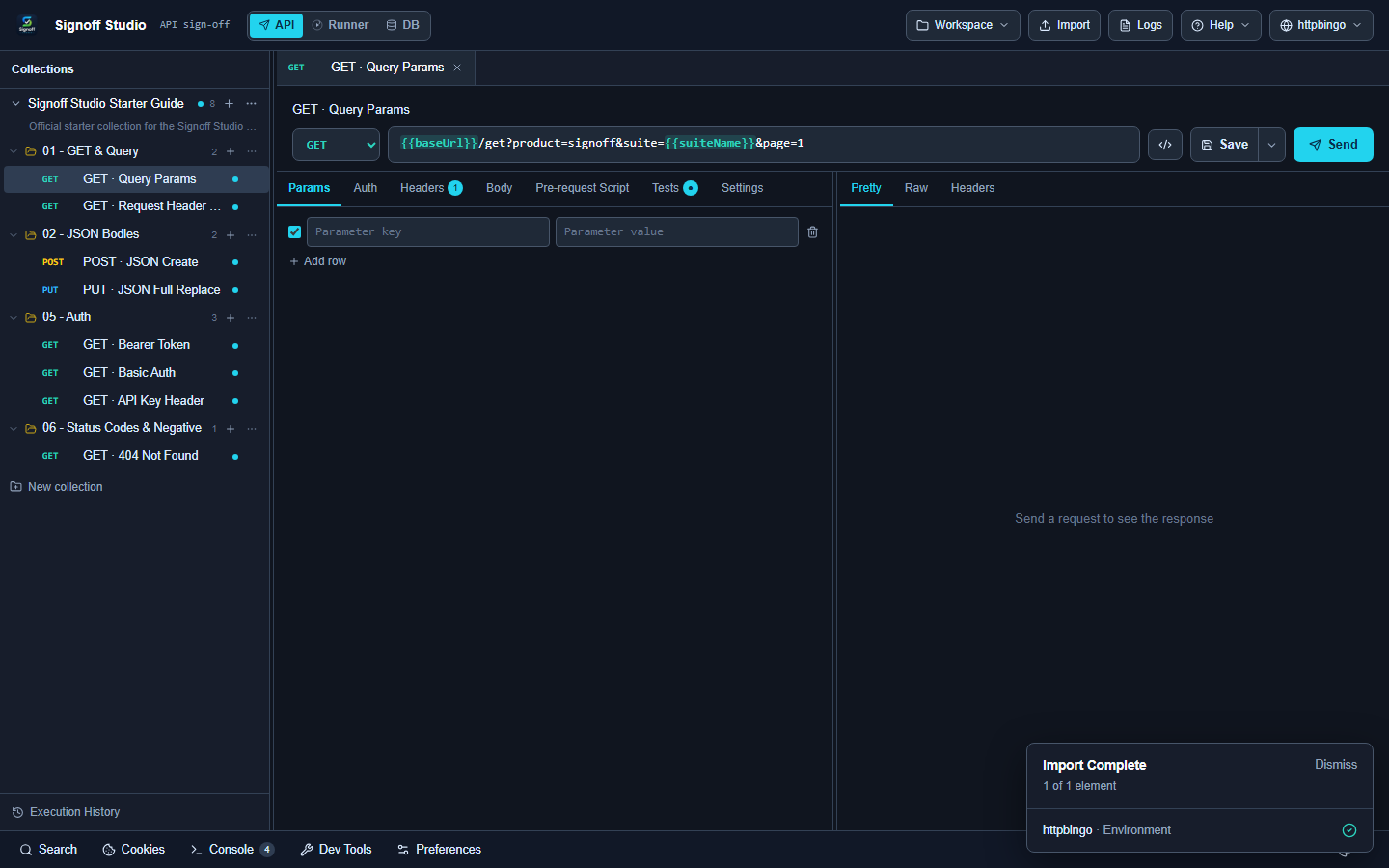
- Overview: Send, save, duplicate, tab management, and settings chords for the request builder and explorer.
- How It Works (Windows App):
- Focus the API request editor or explorer.
- Use the chords below (or Settings → Shortcuts overrides).
- Enter in the URL field also sends.
- How It Works (VS Code Extension):
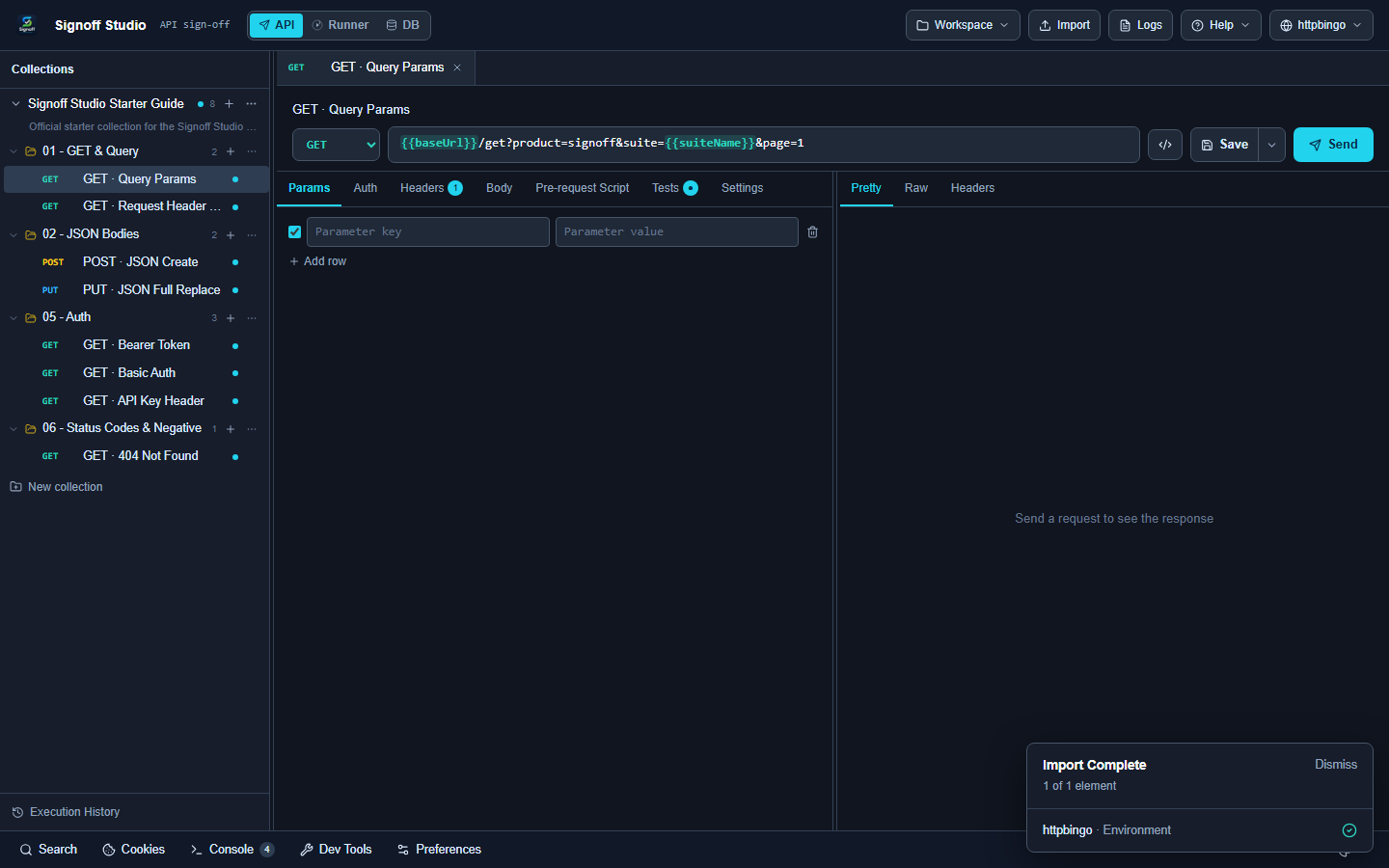
- Focus inside the Signoff webview (not the VS Code editor elsewhere).
- Same chords apply when the webview has keyboard focus.
- If a chord is swallowed by VS Code, rebind the conflicting IDE key or use toolbar buttons.
- Code / Configuration Examples:
| Shortcut | Action | Keymap id |
|---|---|---|
| Ctrl+Enter | Send request | sendRequest |
| Ctrl+S | Save | save |
| Ctrl+D | Duplicate | duplicate |
| Ctrl+W | Close tab | closeTab |
| Ctrl+Shift+T | Reopen closed tab | reopenTab |
| Ctrl+, | Open Settings / Preferences | openSettings |
| F2 | Rename (explorer) | explorerRename |
| Delete | Delete (explorer) | explorerDelete |
| Ctrl+Shift+M | Move to… (explorer) | explorerMove |
| Enter in URL | Send | — |
| Escape | Close dialogs / menus | — |
{
  "shortcuts": {
    "overrides": {
      "save": { "ctrl": true, "key": "s" }
    }
  }
}
- Edge Cases, Troubleshooting & Pro-Tips:
- Unsaved dialogs may intercept navigation shortcuts — save or discard first.
- Explorer chords require tree focus.
Runner shortcuts
- Platform Availability: Full Parity
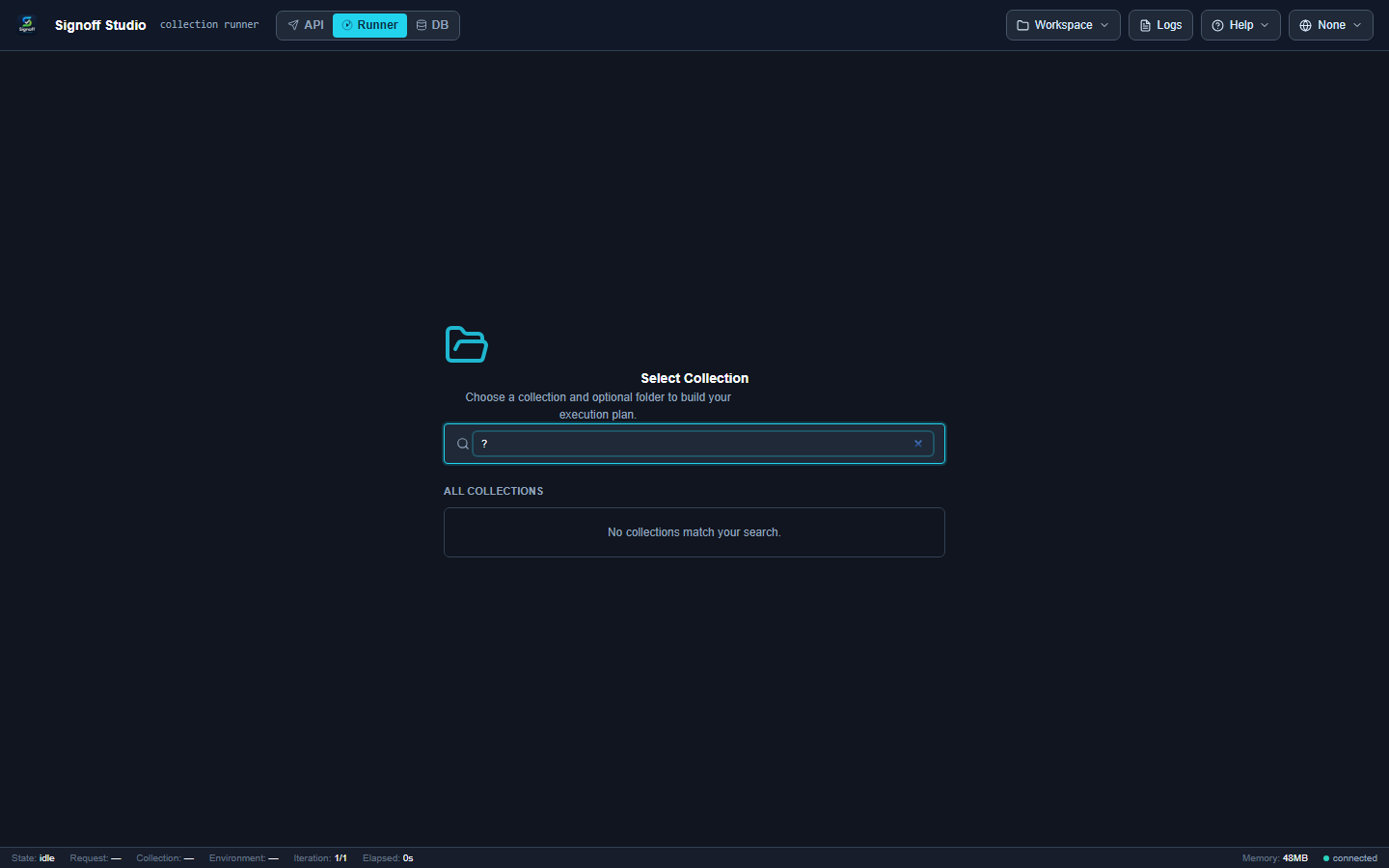
- Overview: Run control, selection, folder expand/collapse, logs, history, and in-Runner help (
?). - How It Works (Windows App):
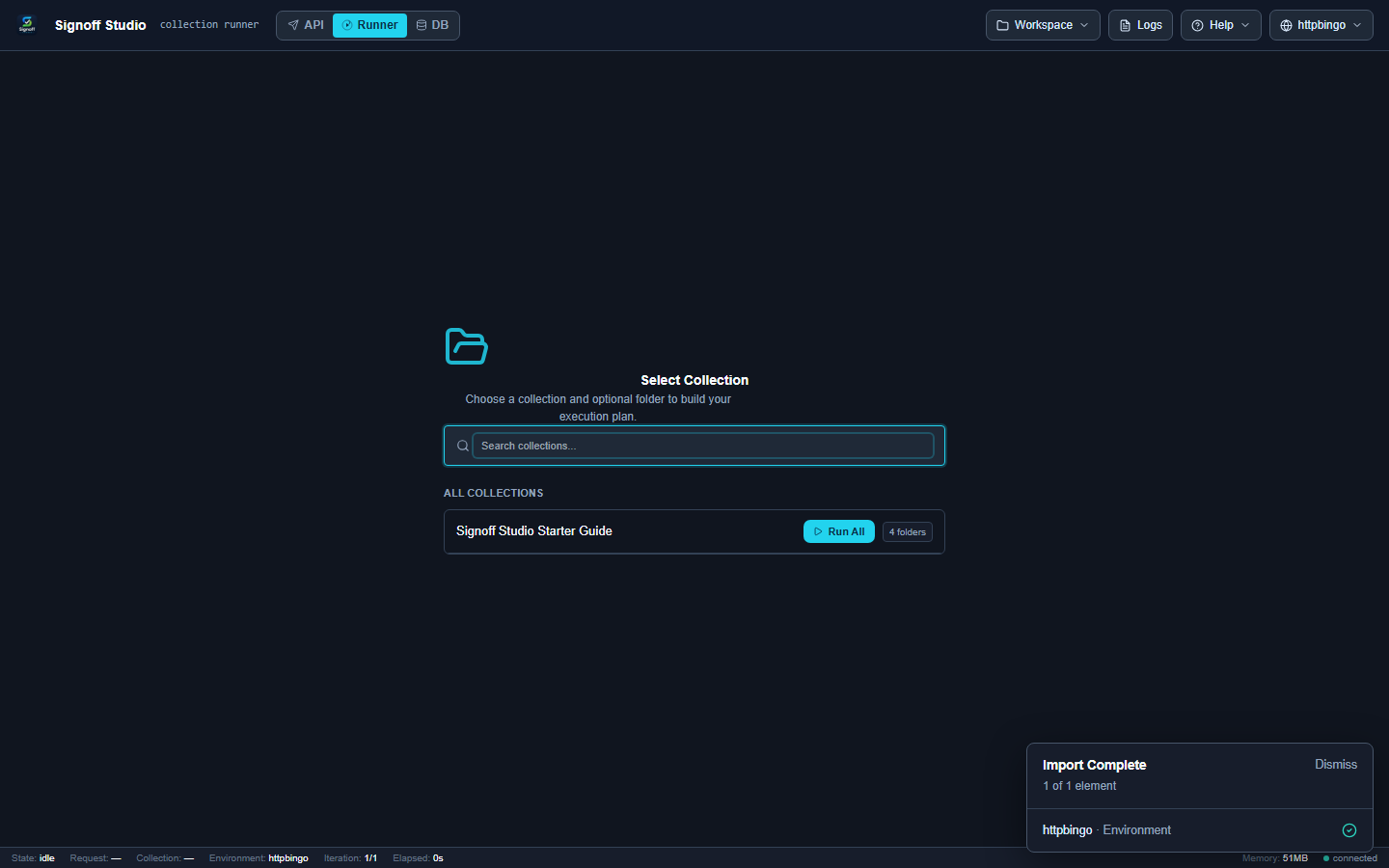
- Open Runner and focus the plan/dashboard.
- Press ? for the on-screen cheat sheet.
- Use run/pause/stop chords during execution.
- How It Works (VS Code Extension):
- Same Runner shortcut set in the webview.
- Keep focus in the webview during a run.
- Ctrl+L / Ctrl+H open logs/history docks.
- Code / Configuration Examples:
| Shortcut | Action |
|---|---|
| Ctrl+Enter | Run collection |
| Ctrl+Enter (while running) | Pause / Resume |
| Ctrl+Shift+Enter | Restart run |
| Ctrl+Shift+S | Stop (with confirmation) |
| Escape | Cancel |
| Ctrl+F | Focus request filter |
| Ctrl+A | Select all requests |
| Ctrl+Shift+A | Deselect all |
| Ctrl+Shift+I | Invert selection |
| Ctrl+Shift+E | Expand all folders |
| Ctrl+Shift+C | Collapse all folders |
| Ctrl+L | Open logs panel |
| Ctrl+H | Open history panel |
| ? | Shortcuts help |
- Edge Cases, Troubleshooting & Pro-Tips:
- Stop always confirms — prevents accidental abort mid-suite.
- Selection chords apply to the plan tree, not OS clipboard select-all outside the webview.
Database workbench shortcuts
- Platform Availability: Full Parity
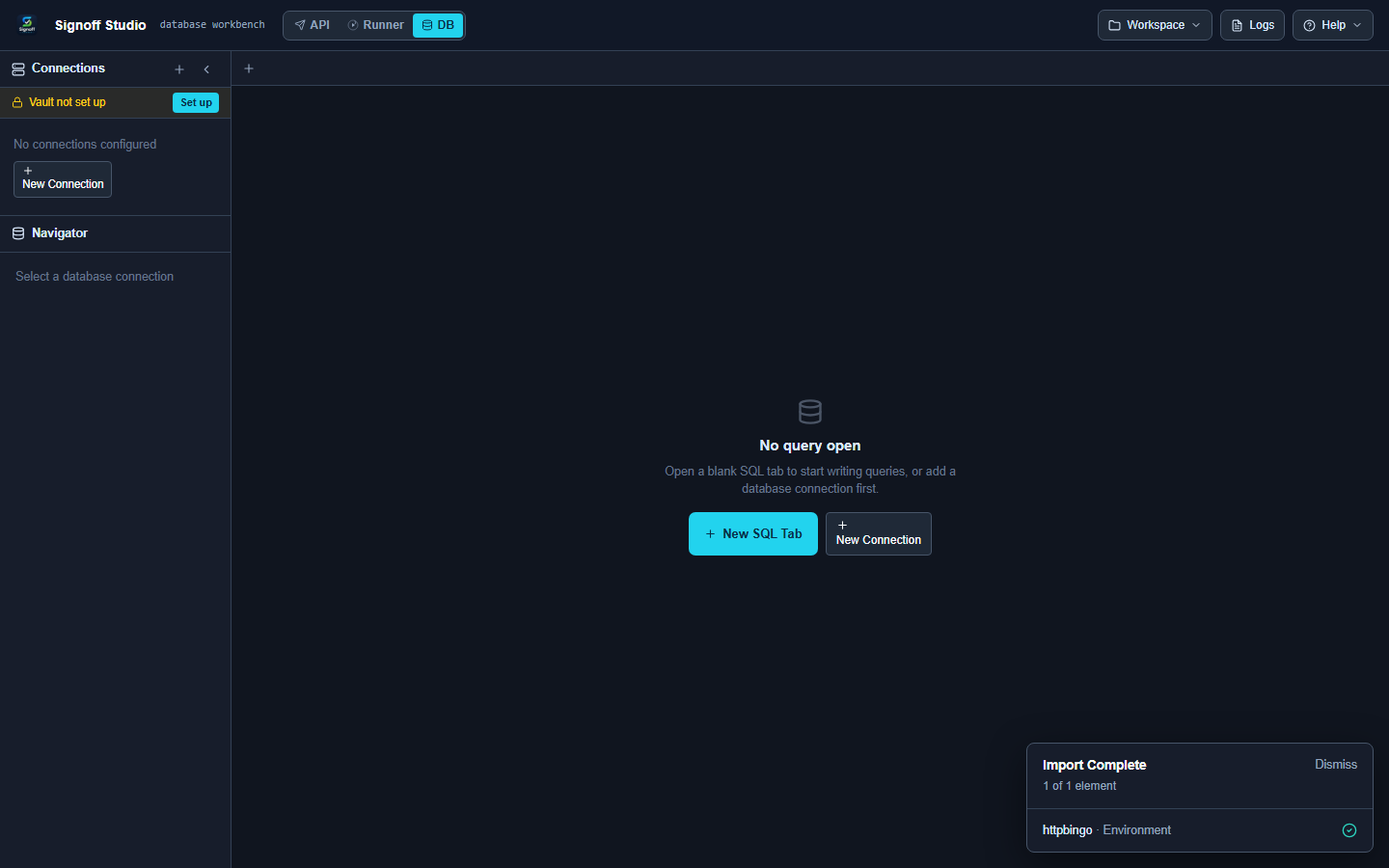
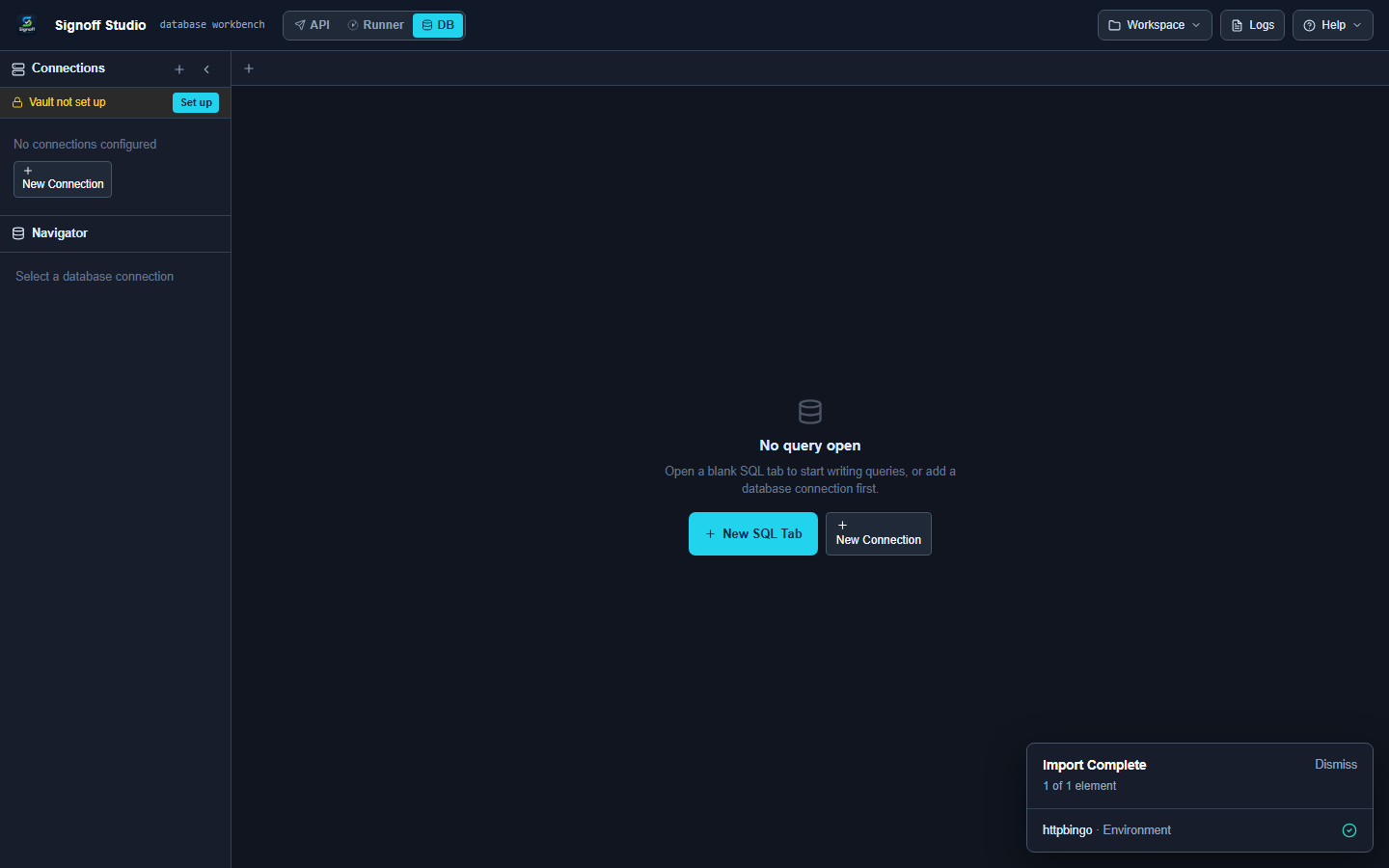
- Overview: Execute, format, tabs, connections, and results find for SQL work.
- How It Works (Windows App):
- Open DB, focus the SQL editor or results.
- Ctrl+Enter runs the current statement; Ctrl+Shift+Enter runs all.
- Press ? for the workbench help overlay.
- How It Works (VS Code Extension):
- Same chords inside the DB webview.
- Avoid conflicting with VS Code Ctrl+N / Ctrl+Tab when focus is outside Signoff.
- Connection vault actions still need the connections pane.
- Code / Configuration Examples:
| Shortcut | Action |
|---|---|
| Ctrl+Enter / F5 | Run query |
| Ctrl+Shift+Enter | Run all statements |
| Ctrl+S | Save SQL file |
| Ctrl+Shift+S | Save SQL file as |
| Ctrl+Shift+F | Format SQL |
| Ctrl+N | New SQL tab |
| Ctrl+Tab | Next SQL tab |
| Ctrl+Shift+Tab | Previous SQL tab |
| Ctrl+Shift+N | New connection |
| Ctrl+O | Open SQL workspace folder |
| Ctrl+D | Duplicate connection |
| Ctrl+F | Find in results |
| ? | Show keyboard shortcuts |
| Escape | Close dialogs / menus |
- Edge Cases, Troubleshooting & Pro-Tips:
- Format SQL is best-effort for dialect quirks (Oracle vs Postgres).
- Run-all on multi-statement scripts may stop on first error depending on driver.
VS Code Command Palette
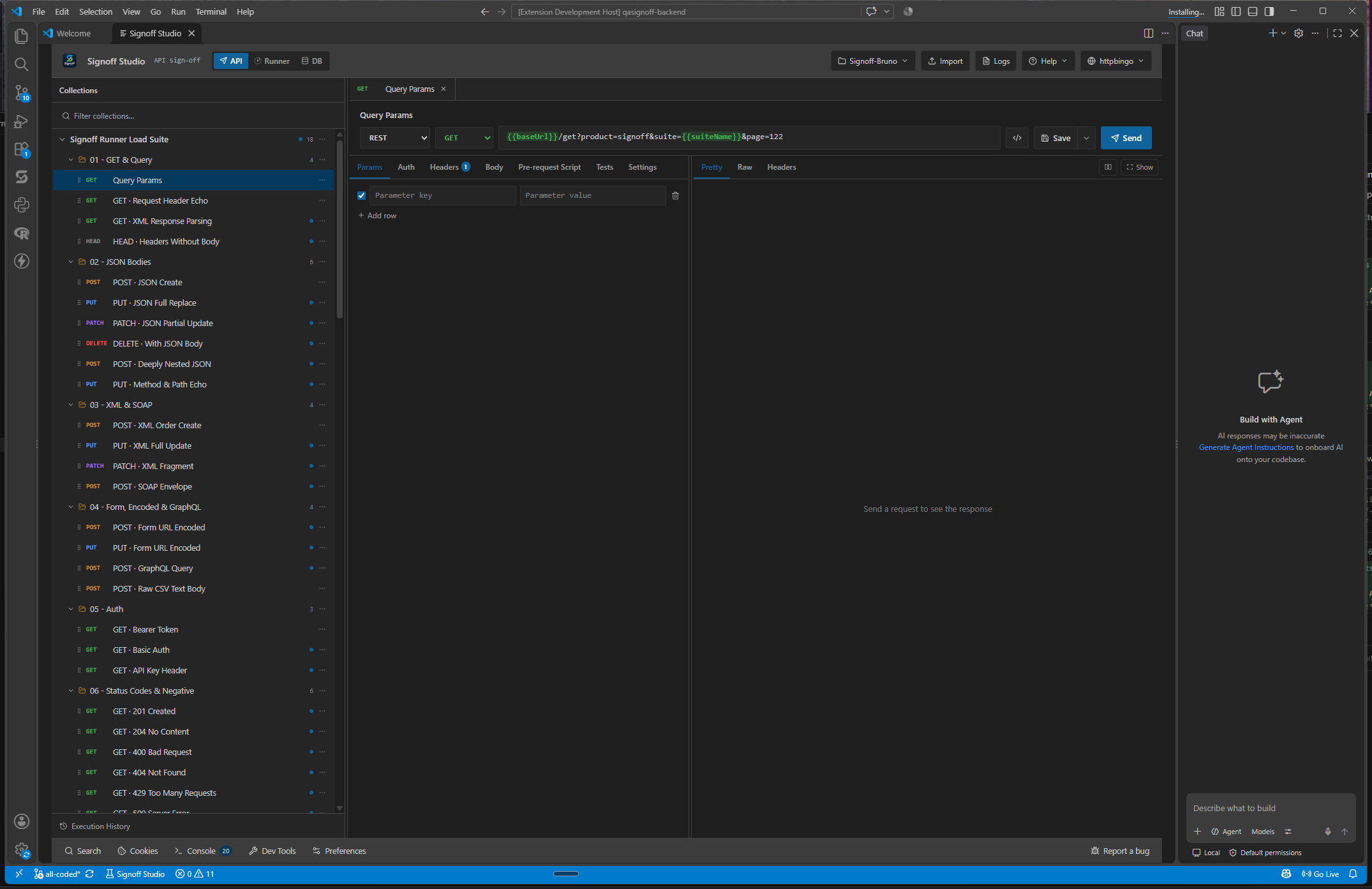
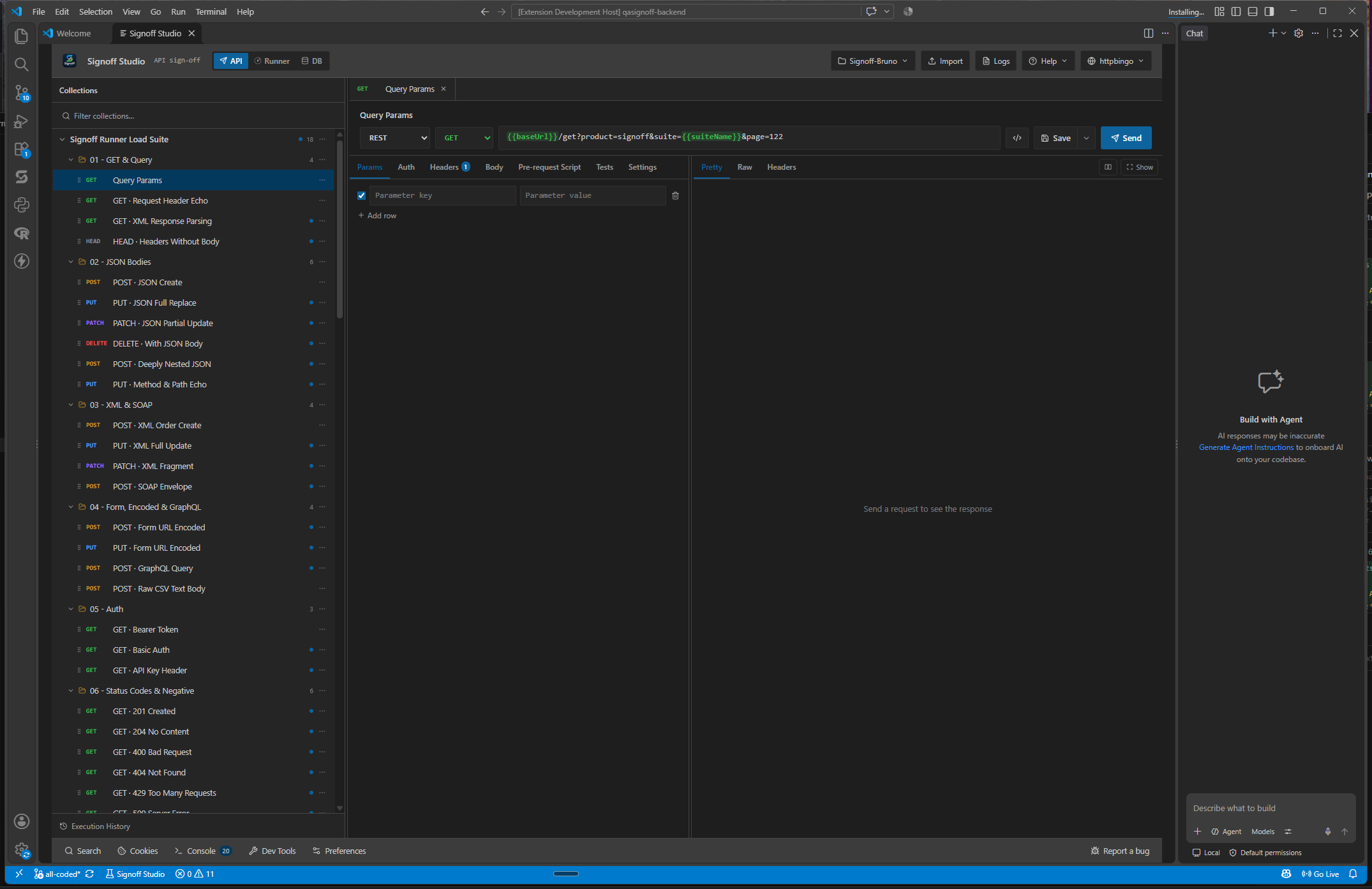
- Platform Availability: VS Code Only
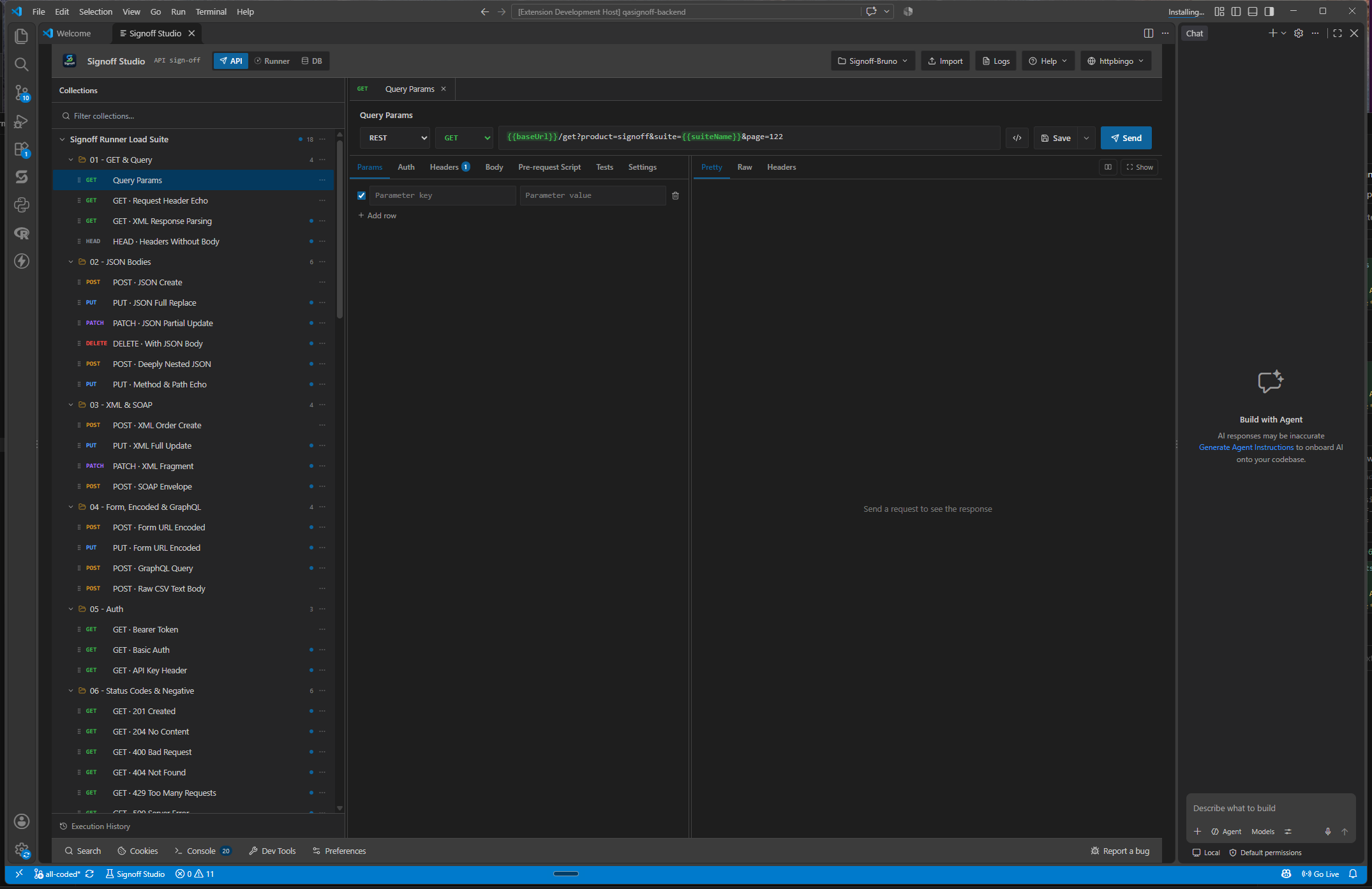
- Overview: Ten contributed commands. No default keybindings and no
contributes.configuration. Open via Ctrl+Shift+P and typeSignoff Studio. - How It Works (Windows App): N/A — use app menus and in-webview chords.
- How It Works (VS Code Extension):
- Ctrl+Shift+P → type
Signoff. - Run the command (e.g. Signoff Studio: Open).
- Optionally add user keybindings to the command IDs below.
- Ctrl+Shift+P → type
- Code / Configuration Examples:
| Title | Command ID |
|---|---|
| Signoff Studio: Open | qasignoff.open |
| Signoff Studio: Switch Workspace | qasignoff.switchWorkspace |
| Signoff Studio: Restore Response Panel | qasignoff.restoreResponsePanel |
| Signoff Studio: New Workspace | qasignoff.newWorkspace |
| Signoff Studio: Open Workspace | qasignoff.openWorkspace |
| Signoff Studio: Import Workspace | qasignoff.importWorkspace |
| Signoff Studio: Manage Workspaces | qasignoff.manageWorkspaces |
| Signoff Studio: Run Collection | qasignoff.explorer.runCollection |
| Signoff Studio: Run Request | qasignoff.explorer.runRequest |
| Signoff Studio: Reveal in File Explorer | qasignoff.explorer.revealInExplorer |
User keybindings.json example:
[
  {
    "key": "ctrl+shift+alt+o",
    "command": "qasignoff.open"
  },
  {
    "key": "ctrl+shift+alt+r",
    "command": "qasignoff.restoreResponsePanel"
  }
]
- Edge Cases, Troubleshooting & Pro-Tips:
- Explorer run commands expect an appropriate tree/explorer selection context.
- Restore Response Panel is the recovery path when the response dock was closed.
- Windows users needing Git / always-on monitors should install the desktop app — these commands do not add Git mode.
GAP IDENTIFIED: VS Code contributes zero default keybindings. In-webview API/Runner/DB shortcuts still work when the webview is focused; host-level open/workspace actions require Command Palette or custom keybindings.